To add an animated progress bar to a short, place a thin bar near the top of the frame, clear of captions and app buttons, and have it fill steadily from the first frame to the last. For list videos, split it into one segment per point and label the current one, in one accent colour.
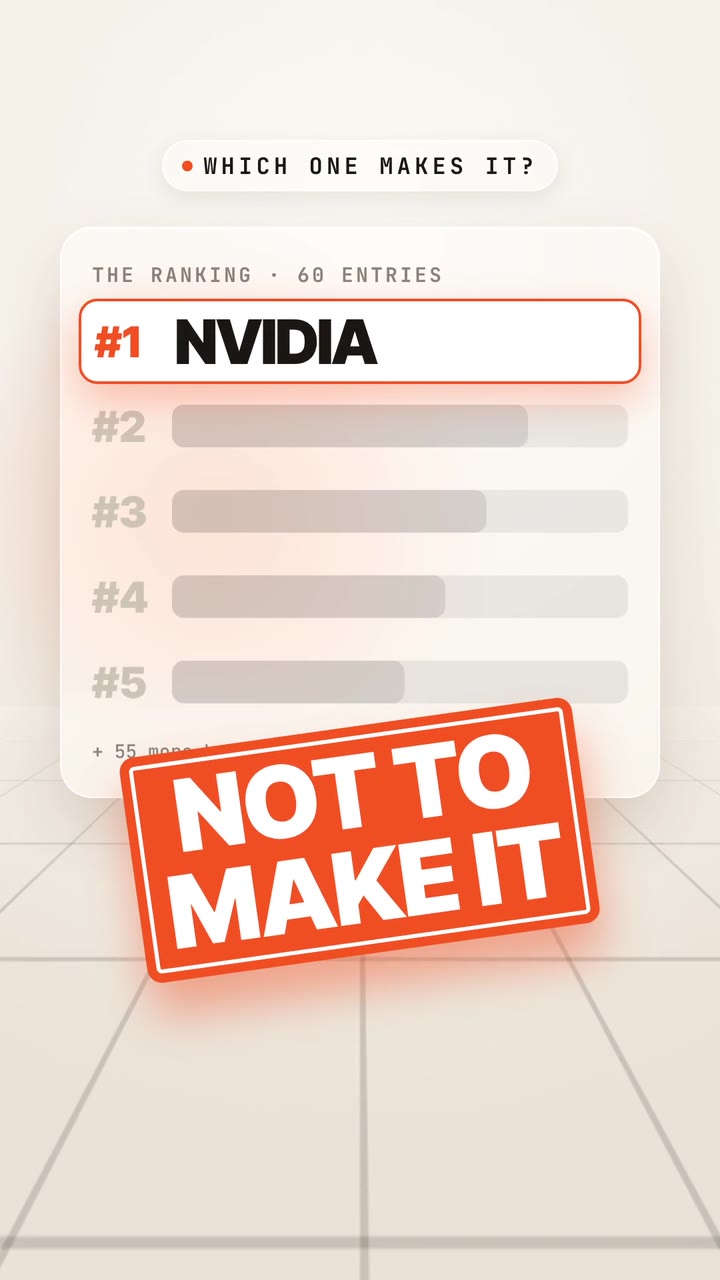

Real outputs from the Videotto template gallery.
When a progress bar helps a short, and when it does not
A progress bar is a promise: there is a structure, and you can see where you are in it. It helps when the video has parts or a payoff at the end.
- List videos. "5 mistakes" with a segment per mistake. Viewers at number 3 can see that 5 is close.
- Tutorials. Each step is a chapter, so people see how much is left before they can try it.
- Stories with a payoff. A thin bar creates a sense of journey towards the reveal.
- Rankings and countdowns. The bar fills as the list builds to number one.
It adds little to a 12 second joke, a reaction clip or a single loose thought, and on those it can work against you. A bar that shows a viewer they are only at 10% of a 90 second clip can make leaving feel easier. There is no reliable public number that says progress bars raise retention across the board, so treat it as something to test: post comparable videos with and without one, and compare average view duration in your analytics.
How to add a progress bar in 5 steps
- Upload the video. Or paste a YouTube link to your own video.
- Say the structure. One continuous bar, or chapters. For chapters, list them with where each starts, or let Otto find them from what you say in the video.
- Pick the position. Top for shorts, roughly 3 to 6% down from the top edge, so it stays clear of captions, the description and buttons at the bottom.
- Set the look. About 6 to 10 pixels thick on a 1080x1920 frame, one accent colour on a faint track, and optional labels or a counter.
- Check the ending. The bar must be full exactly as the video ends, and each segment must change as the matching point starts.
Making a progress bar in CapCut or Premiere Pro vs Otto
The manual method is the same idea in any editor: a coloured rectangle whose width or scale animates from 0 to 100% over the length of the video. Typical effort for a 50 second short:
| Method | How it works | Typical time |
|---|---|---|
| CapCut | Add a shape, anchor it on the left, keyframe its width from zero at the start to full at the end | Roughly 10 to 15 minutes for a smooth bar |
| CapCut, chaptered | One shape per segment, each keyframed to its point, plus text labels | Roughly 30 to 45 minutes |
| Premiere Pro | A rectangle in Essential Graphics with scale or crop keyframes, or a progress bar template (.mogrt) | Roughly 15 to 30 minutes, longer for chapters |
| After Effects | Trim Paths on a line, linked to the composition length, reusable as a template | Roughly 1 hour to build, minutes to reuse |
| Otto | Describe the bar and the points in one prompt | A first draft from one prompt, then a quick check of the segment timing |
The slow part of a chaptered bar is finding where each point begins. In a manual edit that means scrubbing the timeline and noting timestamps before you keyframe anything.
Progress bar prompt for Otto
Adapted from real requests Videotto users sent to Otto. Replace the five points with your own, or say how many there are.
Add an animated progress bar to my video, vertical 9:16.
A thin bar along the top, in five segments, one per point: [point 1], [point 2], [point 3], [point 4], [point 5].
Each segment fills while that point is being talked about. Orange fill on a faint white track.
The current point's name in small caps above the bar.
Keep it clear of the captions and the app buttons. Full exactly as the video ends.
Shorter progress bar prompts
- "Add a chapter progress bar along the top."
- "A running T plus clock beside the progress bar."
- "Show 1 of 5, 2 of 5 in the corner as each tip starts."
- "Make the progress line hand drawn to match the paper style."
Worked example: a chaptered progress bar on a 50 second short
An illustration for a fictional talking head short, "5 mistakes new runners make", filmed in 9:16 at 1080x1920.
| Time | Spoken | Progress bar |
|---|---|---|
| 0 to 5 s | Hook: "Number 4 is why your knees hurt." | Empty track appears, label "5 mistakes" |
| 5 to 14 s | Mistake 1: running every run fast | Segment 1 fills, label "1 of 5 Pace" |
| 14 to 23 s | Mistake 2: new shoes on race day | Segment 2 fills, label "2 of 5 Shoes" |
| 23 to 32 s | Mistake 3: skipping rest days | Segment 3 fills, label "3 of 5 Rest" |
| 32 to 41 s | Mistake 4: overstriding | Segment 4 fills, label "4 of 5 Stride" |
| 41 to 50 s | Mistake 5: no plan | Segment 5 fills and is full at 50 s |
Five segments of 9 seconds each plus a 5 second hook adds up to 50 seconds. The hook names number 4, and the bar shows exactly how far away it is, which is the whole point of the structure. The labels use one or two words so they never compete with the captions.
Progress bar checklist before you post
- Thin enough to ignore, visible enough to notice: about 6 to 10 pixels on a 1080x1920 frame.
- At the top on shorts, never along the very bottom where the app UI sits.
- Never over the speaker's face or the captions.
- Moves steadily, with no jumps or sudden speed ups.
- Each segment changes exactly when its point starts.
- Full on the final frame, not a second early or late.
- Matches the style of the other graphics: hand drawn for a paper look, thin segments and a clock for a mission control look.
- Used where structure helps, not on every video by default.
FAQ
Do progress bars increase watch time on TikTok and Reels?
Progress bars may increase watch time on TikTok and Reels for structured videos such as lists and tutorials, but there is no guarantee and no reliable public figure that applies to every account. On short, unstructured clips they can make leaving easier. The honest answer is to test comparable videos with and without a bar and compare average view duration.
How do I make a progress bar in CapCut?
To make a progress bar in CapCut, add a rectangle shape or a thin colour overlay, position it at the top, and set its anchor on the left edge. Add a keyframe at the start with the width near zero and another at the end at full width. Play it back to confirm it fills evenly across the whole clip.
Do YouTube Shorts show a progress bar?
YouTube Shorts show only a thin, faint progress line at the bottom of the player, and TikTok and Reels also keep their playback controls small so the video fills the screen. Many viewers never notice them. That is why some creators add their own on screen progress bar, which they can style, place where it is visible and divide into chapters.
What colour should a video progress bar be?
A video progress bar should usually be your single accent colour, such as orange, yellow or your brand colour, on a faint white or grey track. It needs enough contrast to read over changing footage but should not be the brightest thing on screen. Avoid red if your captions or highlights already use it, so elements do not blur together.
Can I add a progress bar to a long YouTube video?
You can add a progress bar to a long YouTube video, but on 16:9 videos YouTube already shows a scrub bar and supports chapters through timestamps in the description. An on screen bar is most useful for long lists or courses, where labelled segments act like a table of contents. Keep it thin and consider hiding it during full screen demos.
Make your next video with Otto
Tell Otto what you want in plain words. It cuts, captions and animates the video for you.