To edit motion graphics to the beat, choose music with a clear, steady beat. Then give each part of the music a job: small pulses on the kick, a new word or cut on the snare, a scene change every bar, and your biggest reveal on the drop. Keep moves simple so the rhythm reads.
Real outputs from the Videotto template gallery.
What each part of the music should drive
Sync works when each layer of the music has its own job on screen. Kicks, snares and drops each drive a different kind of move.
| Part of the music | What it drives | How to ask for it |
|---|---|---|
| Kick drum | Small pulses, scale bumps, flashes | "the shape pulses on every kick" |
| Snare or clap | New words, quick cuts, shape changes | "a new word on every snare" |
| Bar or phrase | Scene changes, colour changes | "change scene every bar" |
| Drop | The big reveal, the logo, the boldest move | "the logo lands on the drop" |
| Quiet break | A slow move or a pause | "slow everything down in the break" |
| Tempo | The overall pace of the piece | "music at 120 BPM" |
The most common mistake is syncing everything to every beat, which turns into a strobe. Pick one main layer to follow and let the rest move freely. Hype edits follow the kick. Product videos follow the bar, one feature per bar with the logo on the drop. Text pieces follow the vocals or the snare. Calm pieces change every four bars. If the music has no beat, like ambient piano, sync to the start of each melody line instead.
Worked example: a 20 second product video edited to the beat
An illustration for a fictional fitness app with four features, on a track at 120 BPM. One beat is 0.5 seconds and one bar of 4 beats is 2 seconds, so the four features fit exactly into the 8 second build before the drop.
| Bars | Time | Music | On screen |
|---|---|---|---|
| 1 to 2 | 0 to 4 s | Intro, kick only | A ring pulses on every kick, the app name fades in |
| 3 | 4 to 6 s | Build starts, snare enters | Feature card 1 "Track runs" lands on beat 1 |
| 4 | 6 to 8 s | Build | Card 2 "Plan workouts" slides in on beat 1 |
| 5 | 8 to 10 s | Build | Card 3 "Log meals" on beat 1 |
| 6 | 10 to 12 s | Build, last beat silent | Card 4 "See progress", everything freezes on beat 4 |
| 7 to 8 | 12 to 16 s | Drop | Logo slams in on the first hit, accent colour flips |
| 9 to 10 | 16 to 20 s | Outro | Slow drift, store badges, hold |
The content was shaped to fit the music: four features, four bars. That is the whole trick. When the content and the music share a structure, the sync looks effortless.
How to edit to the beat in 6 steps
- Pick the music first. A track with a clear, steady beat you can tap along to. Ask Otto for music, or upload a track you have the rights to use.
- Map the structure. Listen once and note the timestamps of the intro, build, drop, break and ending. Count how many bars the build has.
- Assign the jobs. Kicks pulse, snares change words, bars change scenes, the drop gets the big moment.
- Fit the content to the bars. Four features fit four bars. Eight lines of text fit two per bar. Cut or add content until it matches.
- Keep the visuals simple. Shapes, kinetic text, product shots and icons in two or three colours sync more cleanly than detailed scenes.
- Check with sound up. Every key move should feel locked to the music. A move 2 or 3 frames late feels worse than no sync at all.
Beat synced motion graphics prompt for Otto
Adapted from real requests Videotto users sent to Otto. Swap in your own words and the moment you want on the drop.
Make a 20 second beat synced motion graphics video, vertical 9:16.
Music: an energetic electronic track at about 120 BPM with a clear drop around the middle.
Visuals: [what to show: shapes, words, product shots].
A pulse on every kick. A new word on every snare: [word 1], [word 2], [word 3], [word 4].
Change scene every bar. On the drop, [the big moment, for example the logo slams in].
Black, white and one accent colour that flashes on the drop.
Every change locked to the beat.
Shorter edit to the beat prompts
- "Make it match the beat, little zooms in and out."
- "Cuts on the beat drop with a flash transition."
- "Every feature card lands on a beat."
- "Add subtle whooshes on my zooms and pops on my keywords."
BPM timing table for beat synced edits
Seconds per beat is 60 divided by the BPM. Multiply by your frame rate to get frames per beat, which is what you line keyframes up to in an editor.
| BPM | One beat | One bar (4 beats) | Frames per beat at 30 fps | Feels |
|---|---|---|---|---|
| 90 | 0.67 s | 2.67 s | 20 | Relaxed, premium |
| 100 | 0.60 s | 2.40 s | 18 | Steady, confident |
| 120 | 0.50 s | 2.00 s | 15 | Energetic, easy to edit |
| 128 | 0.47 s | 1.88 s | About 14 | Dance, hype |
| 140 | 0.43 s | 1.71 s | About 13 | Fast, aggressive |
120 BPM is popular for edits partly because the maths is clean: a cut every beat is exactly 15 frames at 30 fps. At 128 BPM beats fall between frames, so round to the nearest frame and check by ear. By hand, editors in Premiere Pro, After Effects and CapCut mark beats on the timeline (CapCut has an automatic beat marking option) and snap moves to them. For a 20 second piece that is typically 30 to 60 minutes of marking and nudging. Described in a prompt, the timing is part of the first draft and you correct any late hit with a follow up request.
Beat sync mistakes that make an edit feel off
- A strobe instead of a rhythm. Flashing on every single beat is tiring and can be uncomfortable for some viewers. Follow one layer of the music.
- Music with a messy beat. If you cannot tap along easily, the sync will feel random. Pick a track with a steady pulse.
- Off by a fraction. Moves slightly late feel worse than moves with no sync. Check the timing on the five or six key hits frame by frame.
- A drop with nothing on it. Save your boldest move for the drop and keep the beat before it quiet so the hit lands.
- Songs you do not own. Use music made for you or tracks you have licensed for the platform you post on.
FAQ
How do I find the BPM of a song?
To find the BPM of a song, tap along to the beat with an online tap tempo tool or a metronome app, which averages your taps into a tempo. Many music libraries list the BPM with each track, and editors such as CapCut and DAWs can detect beats automatically. Check the result by counting beats over 15 seconds and multiplying by four.
How do you sync video to music in Premiere Pro?
To sync video to music in Premiere Pro, play the track and press M to add a marker on each beat you want to cut on, then turn on snapping so clips and keyframes lock to those markers. Some editors only mark the first beat of each bar to keep it manageable. Scaling and opacity keyframes can snap to the same markers.
Should cuts land exactly on the beat or slightly before?
Cuts usually feel best exactly on the beat or one or two frames before it, because the eye registers a cut slightly slower than the ear registers a hit. Cutting late almost always feels wrong. Try both on your key moments, and trust the version that feels locked when you watch at full speed with sound.
What is the difference between a bar and a beat in music?
A beat is a single pulse you would tap your foot to, and a bar is a group of beats, usually four in pop, electronic and hip hop music. At 120 BPM a beat lasts half a second and a four beat bar lasts two seconds. Bars are useful for editing because phrases and scene changes tend to follow them.
What tempo works best for a beat synced video?
A tempo of about 100 to 130 BPM works best for most beat synced videos, because changes on each beat or bar land at a comfortable pace to watch. Faster tracks suit hype edits and sport, slower tracks suit premium product films. Very fast tempos often work better if you cut on every second beat.
Make your next video with Otto
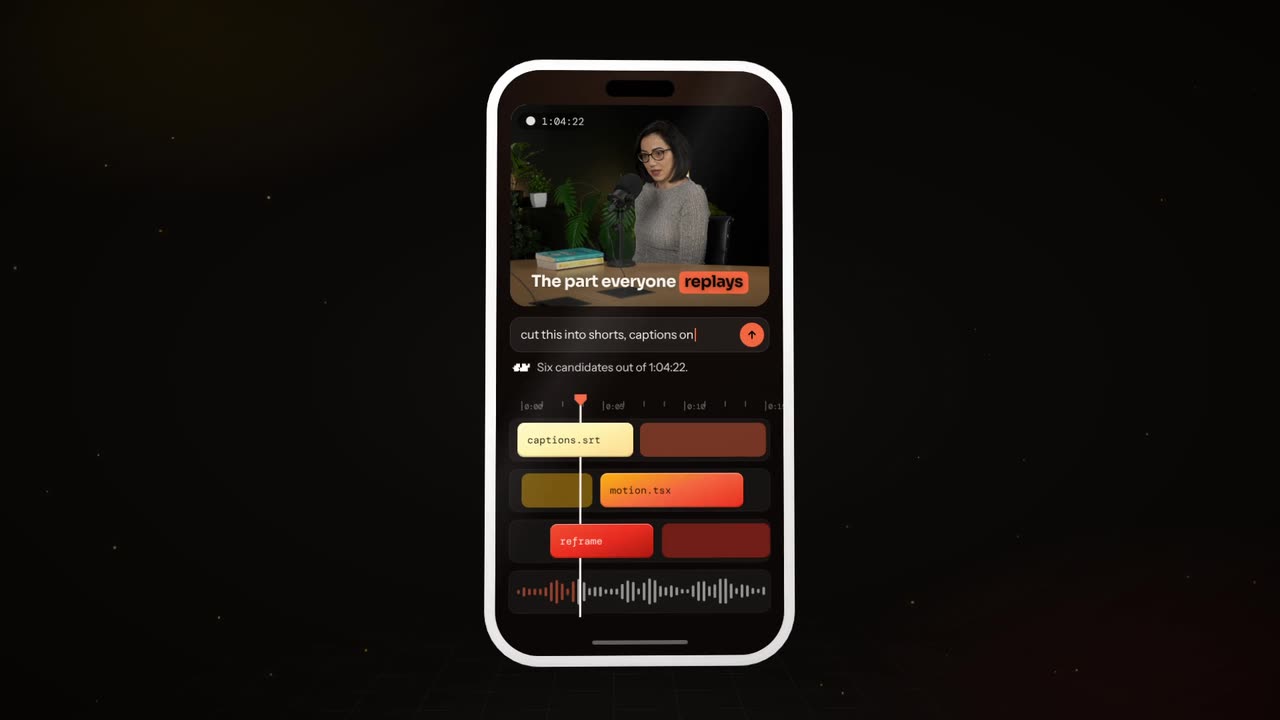
Tell Otto what you want in plain words. It cuts, captions and animates the video for you.