To make an animated code typing video, paste the exact code or commands and place them in a dark editor or terminal window with a large monospaced font, and have them type out at a readable pace with a blinking cursor. Show the output after each command, highlight the key line, and keep lines under 32 characters.
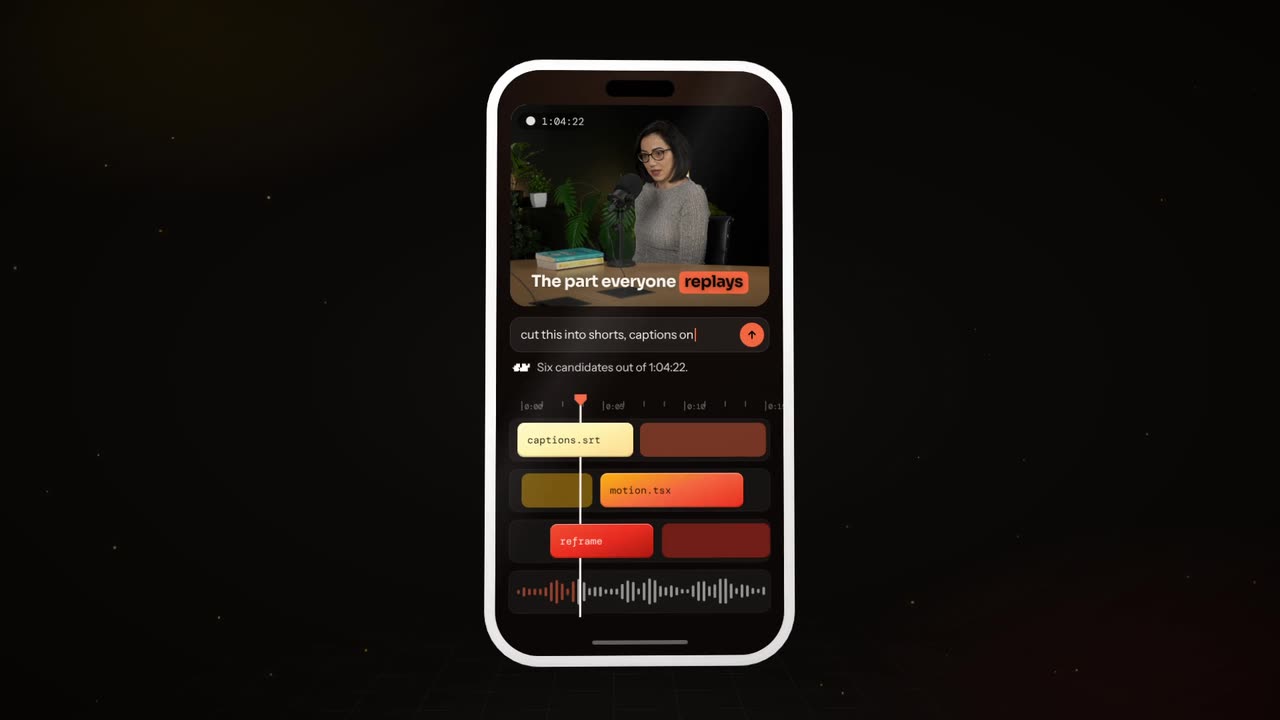
Real outputs from the Videotto template gallery.
Example: a 20 second terminal typing video
Here is an example of the format before the how to. The input was two invented commands for a fictional command line tool: an install command and a deploy command, plus the three lines of output each one prints. The brief asked for a dark terminal on a navy gradient, the title "Deploy in one command" and a green highlight on the deploy line.
| Time | On screen | Detail |
|---|---|---|
| 0 to 2 s | Window scales in, title fades in above | Title in 2 to 4 words so it reads in under a second |
| 2 to 6 s | Install command types out | About 12 characters per second, cursor blinking |
| 6 to 8 s | Install output prints | Appears in one go after a 0.5 s pause, like a real run |
| 8 to 12 s | Deploy command types out | Same speed, so the rhythm feels mechanical |
| 12 to 14 s | Deploy output and a success line | Small chime on the success line |
| 14 to 20 s | Camera pushes in on the deploy line, green highlight, hold | The one line the viewer should remember |
The result reads cleanly on a phone because no line is longer than 30 characters and the font fills about 80 percent of the window width.
How to build an animated code typing video
- Paste the exact code. Copy it as plain text. Short is better: one function, one command, one config file. Say "keep every character exactly as given".
- Pick editor or terminal. An editor window for code, a terminal for commands and their output. You can switch between them in one video.
- Mark the key line. Say which line is the point of the video. It gets the highlight and the zoom.
- Set the typing speed. "Readable speed" works, or set a length per line. Around 10 to 15 characters per second is easy to follow. Long blocks can appear in chunks instead of letter by letter.
- Add the output. For commands, paste what the terminal prints. It appears after a short pause, like a real run.
- Add a title and captions. A short title on top ("Deploy in one command") and, if you narrate, large captions above or below the window so the code area stays clear.
Design choices for code typing videos
You are designing a window, not recording one. These are the choices that decide whether it reads on a phone.
| Choice | Safe default | When to change it |
|---|---|---|
| Window | Rounded terminal or editor with three dots, on a soft gradient | Use a plain background for a minimal brand look |
| Font size | Monospaced, 30 to 35 characters per line on 9:16 | Up to about 60 characters per line on 16:9 |
| Syntax colours | Dark theme, three or four colours | Fewer colours if the highlight gets lost |
| Motion | Type on, blinking cursor, instant output, gentle zoom | Chunked reveal for blocks longer than 10 lines |
| Pacing | Pause of about 0.5 s after each command | Longer holds on results you want screenshotted |
| Sound | Soft key clicks, a chime on success | Music only if you narrate over it |
Code typing video prompt for Otto
Adapted from the way Videotto users brief Otto for product and tutorial motion. Replace the code and the title.
Make a 20 second animated terminal typing video, 9:16 vertical. No footage.
TITLE at the top: [Your title]
WINDOW: a dark rounded terminal window with three dots, centred, on a deep navy gradient #0B1020 to #18223D.
TYPE: monospaced, large, max 32 characters per line.
COMMANDS (type each one out, keep every character exactly as given):
[command 1]
[command 2]
OUTPUT after each command (appears instantly after a short pause):
[output lines]
ANIMATION SEQUENCE:
0 to 2 s: the window scales in, the title fades in above it.
2 to 14 s: commands type out at a readable speed with a blinking cursor, output prints after each.
14 to 18 s: zoom in on [key line], highlight it in #4ADE80.
18 to 20 s: zoom back out and hold.
SOUND: soft key clicks while typing, a small chime on success, light electronic music.
RESTRICTIONS: no typos, no extra code, no logos.
Short code typing prompts that also work
- "Type this code out line by line, then highlight line 4."
- "Show the before code, then the fixed code, with the changed lines in green."
- "Terminal on top, my talking head on the bottom half."
- "Big monospaced font, dark theme, readable on a phone."
- "Add captions above the window for my voice over."
Ways to make a code typing video compared
There are several honest ways to get code moving on screen. The effort figures are typical estimates for a 20 second clip, not measured results.
| Method | Good at | Watch out for | Typical effort |
|---|---|---|---|
| Screen recording (OBS, QuickTime) | Real tools, real output | Typos, small text, cropping for 9:16 | 30 to 60 minutes with retakes and edits |
| Terminal recorders (asciinema, VHS) | Scripted, repeatable terminal runs | Output is a cast or GIF, still needs editing into a video | Under an hour if you know the tools |
| Code image tools (Carbon, ray.so) | Beautiful static code cards | No typing animation on their own | Minutes per image, then animate elsewhere |
| After Effects or Keynote | Full control over every character | Manual keyframes per line | 1 to 3 hours |
| Otto | Typing, output, zoom and captions from one brief | Check every character in the final frame | A few minutes to brief plus a review |
Code typing video mistakes
Most code videos fall into three formats: the one liner tip (10 to 20 seconds), before and after (removed lines in red, new lines in green) and the setup walkthrough (three to five commands ending on the product running). All three fail in the same ways.
- Code too small to read. A full file on a phone is unreadable. Show only the lines that matter, at a large size.
- Typing too fast. If viewers cannot read along, the animation is just noise. Slow it down or show long blocks in chunks.
- Real secrets on screen. Replace keys, tokens and passwords with placeholders before you paste the code.
- Changed code. One wrong character breaks the tip. Say "keep every character exactly as given" and check the last frame.
FAQ
What is the best font for a coding video?
The best font for a coding video is a clear monospaced font with distinct characters, so a zero never looks like a capital O and a lowercase l never looks like a 1. JetBrains Mono, Fira Code and Source Code Pro are common free choices. Size matters more than the face: keep it large enough for about 30 characters per line on a vertical video.
How do you make a typing effect for code in After Effects?
To make a code typing effect in After Effects, create a text layer with your code and apply the Typewriter preset from Animation Presets, or add an Opacity animator set to 0 percent and keyframe its Range Selector Start from 0 to 100 percent. Add a separate blinking cursor layer. It works well, but each line usually needs its own timing to match a voiceover.
How long should a coding short be on TikTok or YouTube Shorts?
A coding short on TikTok or YouTube Shorts usually lands best at 10 to 30 seconds for a single tip, and 45 to 60 seconds for a short setup walkthrough. Shorts can run up to 3 minutes, but code needs reading time, so splitting a long tutorial into a numbered series tends to keep viewers following.
Should a coding video use light or dark theme?
A coding video works in either light or dark theme, but dark themes are more common because syntax colours and a bright highlight stand out against them, and they match what many developers use daily. Light themes can read better in bright feeds and for beginner audiences. Whichever you choose, keep the contrast high and the colour count low.
Make your next video with Otto
Tell Otto what you want in plain words. It cuts, captions and animates the video for you.