To make an animated checklist video, write a title that promises something useful and 5 to 10 items under six words each. Give each item about 2 seconds to appear and get ticked, use one tick style throughout, then hold the finished list for 2 to 3 seconds. Six items fit comfortably in a 20 second video.
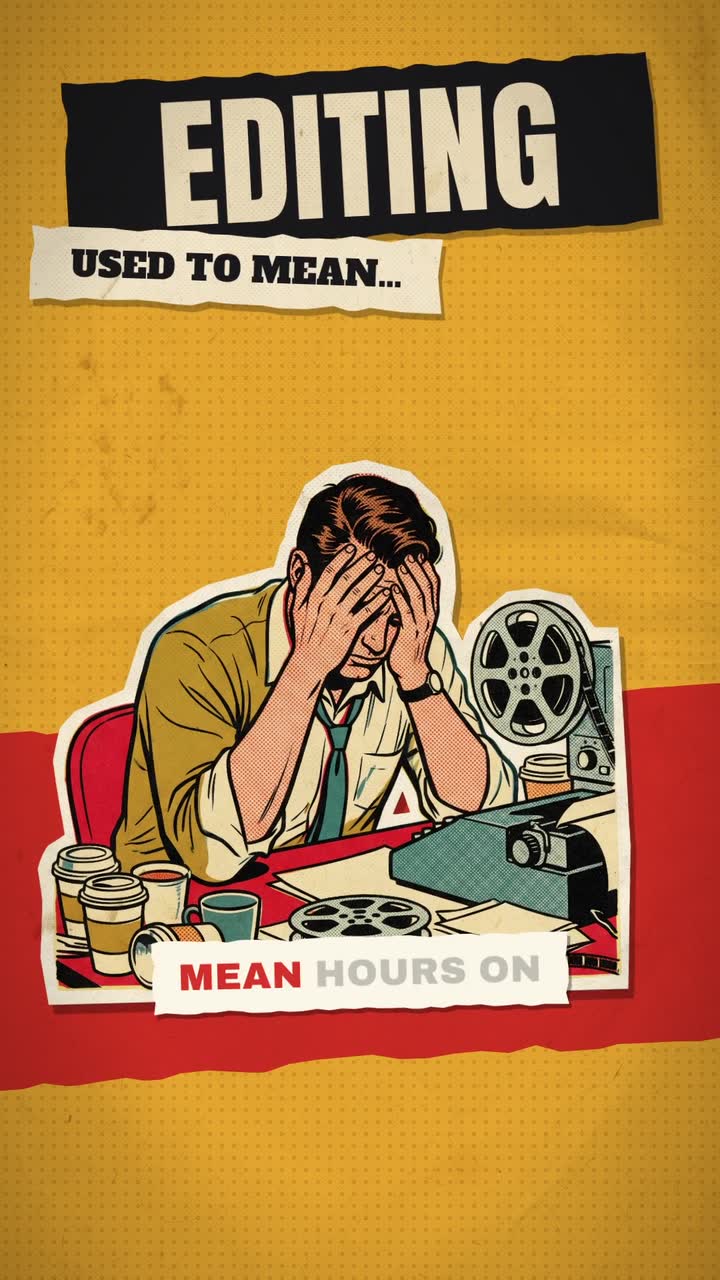
Real outputs from the Videotto template gallery.
When a checklist video is the right format
A checklist works when the viewer will actually use the list later. If the post answers "what do I need?" or "what should I check?", it fits. These topics suit the format well:
- Before you buy or sign. Leases, used cars, a new laptop. Useful and easy to share with someone about to do it.
- Packing and prep. Travel, a first day at the gym, a market stall setup.
- Routines. Morning, skincare, study or a weekly reset. These work well as a recurring series.
- Business launch prep. Things to check before you post an ad or open a shop.
- Service explainers. What to bring to a first appointment, for salons, clinics and coaches.
If order matters, you are making a tutorial rather than a checklist: numbered steps instead of ticks. A checklist can be done in any order; a tutorial cannot.
Checklist video timing and specs
Most checklist videos are short vertical posts. These numbers are a starting point that keeps every item readable on a phone.
| Setting | Starting point | Why |
|---|---|---|
| Format | 9:16 at 1080x1920 for Reels, Shorts and TikTok | Fills the phone screen |
| Items | 5 to 10, each under six words | Readable in about 2 seconds |
| Time per item | About 2 seconds: appear, tick, next | Fast enough to feel satisfying |
| Title | On screen from the first frame, top third | It is the hook |
| Final hold | 2 to 3 seconds on the full ticked list | The frame people screenshot |
| Total length | 15 to 30 seconds | Six items plus title and hold is about 20 s |
| Safe area | Keep text out of the bottom 15 to 20 percent | App buttons and captions sit there |
The tick itself can be a hand-drawn check, a filled box, a strike through or a small burst. Pick one and use it for every item; a checklist that changes its tick halfway feels unfinished. Calm bases such as cream, white or soft grey with one bright colour for the tick read best.
Animated checklist prompt for Otto
Adapted from the way Videotto users brief Otto for text-led motion videos. Change the title and items.
Create a 20 second animated checklist video. All motion graphics, no footage.
TITLE: [your title]
ITEMS:
[item 1]
[item 2]
[item 3]
[item 4]
[item 5]
[item 6]
FORMAT: 9:16 vertical.
STYLE: a lined paper note on a soft beige background #F3EBDD, dark ink text, ticks in bright green #2DBE60.
ANIMATION SEQUENCE:
0 to 2 s: the note slides up, the title writes on at the top.
2 to 16 s: each item slides in, a tick draws itself beside it, then the next item. About 2 seconds each.
16 to 20 s: the full ticked list holds, "Save this for later" fades in at the bottom.
SOUND: light upbeat music, a crisp pen tick on each item, ticks on the beat.
RESTRICTIONS: keep every item exactly as written, text clear of the bottom buttons, made to work with the sound off.
Short checklist prompts that also work
- "Make a checklist of these 7 items, each one ticked with a pop sound."
- "App style to do list, items strike through as I say them in the voiceover."
- "Bold coloured cards, one item per card, a big tick stamps on each."
- "Hold the full list at the end for 3 seconds so people can screenshot it."
- "Same checklist style for the whole series, new items each week."
Making the checklist video, step by step
- Write a title that promises something. "Before you sign a lease", "Carry-on packing list", "My 6am routine". The title is the hook, so it is on screen from the first frame.
- Write the items. Five to ten items, each under six words. Put the most surprising item second or third, not last.
- Pick the card style. Paper note, app-style list, bold coloured cards, or a clipboard. Add your brand colours if it is for a business.
- Set the rhythm. About two seconds per item. Time the ticks to the music beat if you have one.
- Add a voice or keep it silent. An AI voice can read each item, or leave it to the text and a tick sound for sound-off viewing. If you upload your own recording, ask for each item to appear and tick when you mention it.
- Hold the full list. End with every item ticked and the title above, held for two or three seconds. Add a "save this" line if you like.
Example: a 20 second carry-on packing checklist
An illustrative example, not a real account. The input was a title, "Carry-on only: 6 things I never forget", and six items: passport and boarding pass, phone charger and adapter, refillable water bottle, one change of clothes, liquids in a clear bag, and a pen for arrival forms. The last item is the unexpected one, so it was moved to third place.
The style was a white app-style list on a pale blue background with blue ticks. The result ran like this: title writes on in the first 2 seconds; items arrive every 2.3 seconds from 2 to 16 seconds, each struck through after its tick; at 16 seconds the list holds with "Save for your next trip" underneath until 20 seconds.
Building the same thing by hand in Canva or CapCut, with a separate animation and sound for each tick, typically takes 30 to 60 minutes. Written as a brief, the work shifts to choosing the items and checking the spelling.
Checklist video problems and how to fix them
| Problem | What causes it | Fix |
|---|---|---|
| Viewers cannot finish reading an item | Items are full sentences | Cut each item to a few words; move detail to the post caption |
| Text is tiny | More than ten items on one screen | Split into two videos or scroll the list |
| Nobody saves it | The full list vanishes at the end | Hold the finished list for 2 to 3 seconds |
| It feels irritating after a few seconds | A loud click on every tick | Use a soft tick on the beat, lower than the music |
| Last item is under the app buttons | List runs to the bottom of the frame | Keep text above the bottom 15 to 20 percent |
FAQ
What app makes checklist videos for TikTok?
Apps that make checklist videos for TikTok include CapCut, which has text templates with tick and strike-through animations, and Canva, which has checklist designs you can animate and export as MP4. Both need you to time each item by hand. AI editors that build the video from a written list, such as Otto, handle the timing for you.
How many items should a checklist video have?
A checklist video should usually have five to ten items. Fewer than five feels thin for a save-worthy list, and more than ten makes the text too small on a phone screen. If your list is longer, split it into part one and part two, which also gives you a reason for viewers to follow for the next post.
How do you make a to do list video aesthetic?
To make a to do list video look aesthetic, keep one soft background colour, one readable font and one accent colour for the ticks. Paper textures, lined notes and handwritten-style ticks suit routine and study content. Pair it with gentle music and a soft pen sound, and keep the motion slow and even rather than bouncy.
Should I add a voiceover to a checklist video?
Adding a voiceover to a checklist video is optional. Many viewers watch with the sound off, so the text must work alone either way. A voiceover helps when each item needs a short reason, like why to pack a pen. If the items explain themselves, music and a soft tick sound are usually enough.
Make your next video with Otto
Tell Otto what you want in plain words. It cuts, captions and animates the video for you.