To make an animated step by step tutorial, write 5 to 7 steps that each start with a verb, give every step the same layout (big number, one line of text, one visual), and hold each on screen for 3 to 4 seconds. Add a progress marker and end on a recap frame listing every step.
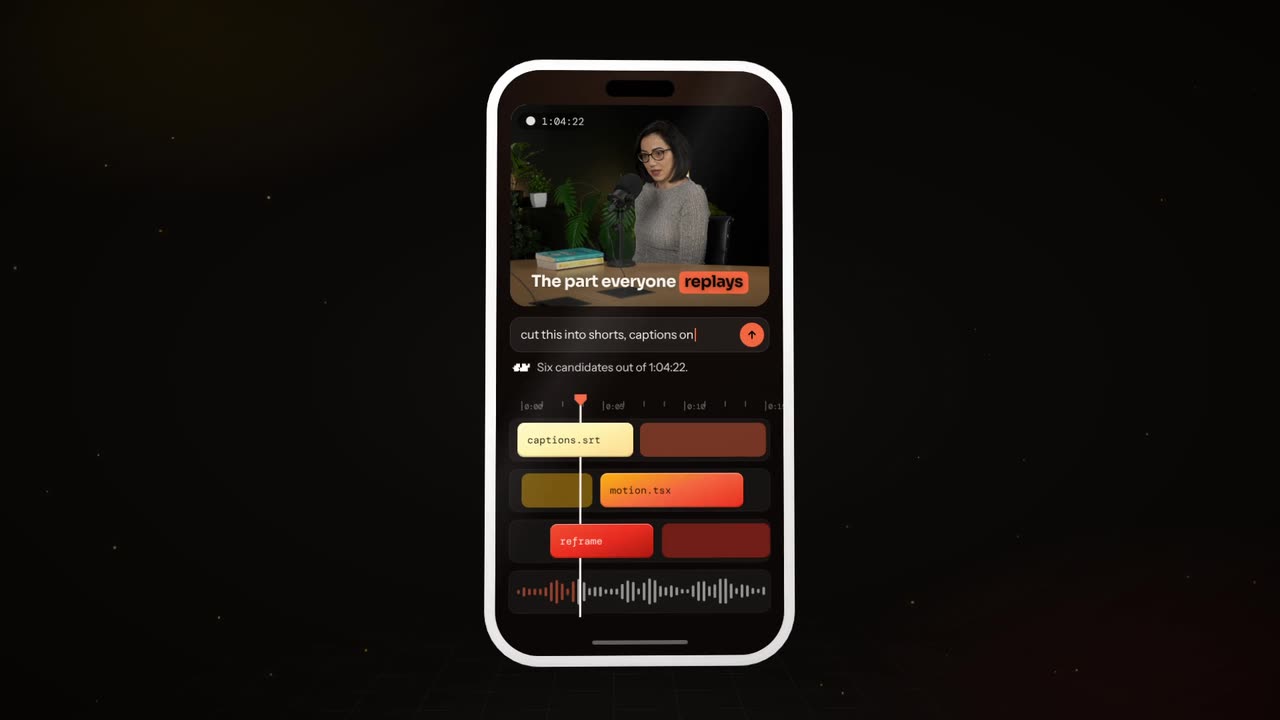
Real outputs from the Videotto template gallery.
Example: a 30 second animated tutorial from a 5 step list
Start with what the finished thing looks like. This is an illustrative example, not a real customer video. The input is a plain text list for setting up two-factor login in a generic app:
1. Open Settings. 2. Tap Security. 3. Turn on two-step login. 4. Scan the code with your authenticator app. 5. Enter the 6 digit code.
The brief asked for 9:16, a white background, phone mockups, a blue accent and a calm AI voice. Here is how the 30 seconds came out:
Beat sheet
| Time | Card | Visual and motion |
|---|---|---|
| 0 to 3 s | Title: "Turn on two-step login" | Lock icon draws in, progress bar appears empty at the top |
| 3 to 8 s | Step 1: Open Settings | Phone mockup slides in, a ring pulses on the gear icon |
| 8 to 13 s | Step 2: Tap Security | Arrow points to the Security row, bar fills to 2 of 5 |
| 13 to 18 s | Step 3: Turn on two-step login | The toggle flips to blue with a soft click |
| 18 to 23 s | Step 4: Scan the code | A generic QR square appears, a second phone tilts toward it |
| 23 to 27 s | Step 5: Enter the 6 digit code | Six boxes fill one by one, a green tick lands |
| 27 to 30 s | Recap | All five steps as a numbered list, held |
Five steps at about 4 to 5 seconds each, plus a 3 second title and a 3 second recap, lands at 30 seconds. The voiceover script was 62 words, which reads comfortably in that time at a normal speaking pace of roughly 140 to 160 words per minute.
How to make an animated step by step tutorial
This page is about tutorials built entirely from graphics. If you have a screen recording of your app, the app demo guide covers that instead.
- Write the steps. One action per step, starting with a verb: "Open settings", "Tap the plus", "Pour the water". Five to seven steps is the sweet spot for a short, each under about eight words.
- Pick a visual for each. An icon, a simple phone or app mockup, an illustrated object or a generated image. Keep the same style for all of them.
- Set the layout. Where the number, the text and the visual sit. Say "the same layout for every step" so nothing jumps around.
- Add a progress marker. "Step 3 of 6" or a bar that fills. It tells viewers how long is left, which keeps them watching.
- Add voice or captions. Upload your narration, ask for an AI voice, or let the on-screen text carry it for sound-off viewing.
- End on a recap. All the steps in one list on the last frame, held for 3 seconds. That is the frame people screenshot and save.
Choosing a visual for each tutorial step
Match the visual to what the viewer needs to see. The simplest one that shows the action is the right one, and the layout around it should never change.
| If the step is... | Use | Layout tip |
|---|---|---|
| A tap or click in an app | A simple phone or app mockup with an arrow or ring | Mockup centred, number top left |
| A physical action (pour, fold, plug in) | An illustrated object or a generated image | Object large, text under it |
| A setting or choice | A toggle, slider or highlighted option | Zoom in on the control itself |
| A wait or a timer | A timer ring that fills | Show the time in large numbers |
| A warning | A single icon in the accent colour | Keep it to one short line |
Clean white or light grey backgrounds with dark text and one accent colour for the action read best on small screens. A progress bar along the top edge takes up little space and works at any length.
Step by step tutorial prompt for Otto
Adapted from the way Videotto users brief Otto for step by step explainers. Replace the steps with yours.
Create a 30 second animated step by step tutorial. All motion graphics, no footage.
TOPIC: [how to do the thing]
STEPS:
1. [action]
2. [action]
3. [action]
4. [action]
5. [action]
FORMAT: 9:16 vertical.
STYLE: clean white background, dark text, one blue accent #2F6BFF for the action, simple line icons or phone mockups.
LAYOUT: big step number top left, the instruction under it, one visual in the centre. Same layout for every step.
ANIMATION: each step slides in, an arrow or highlight points to the action, holds 4 seconds, slides out. A progress bar along the top fills step by step.
END: all five steps as a checklist, hold 3 seconds.
SOUND: calm music, a soft click on each step. Made to work with the sound off.
RESTRICTIONS: keep every instruction exactly as written, no bouncing.
Short tutorial prompts that also work
- "Turn these 6 steps into an animated tutorial with a phone mockup for each."
- "Big numbers, one line each, a progress bar on top, 25 seconds."
- "Add a calm AI voice reading each step."
- "End with all the steps in one list so people can screenshot it."
- "Same style as last week's tutorial, new steps."
Animated tutorial tools compared
Most people searching for this are choosing between a slide tool, a video editor and a motion tool. Each can make a step by step tutorial; they differ in how much of the timing and motion you do by hand.
| Tool | How the tutorial gets made | Typical time for 30 s, 5 steps |
|---|---|---|
| Canva | Design one card per step from a template, add page animations, export as MP4 | Roughly 45 to 90 minutes |
| PowerPoint or Keynote | One slide per step with build animations, export as video | Roughly 1 hour, more to sync a voiceover |
| CapCut | Text and sticker animations over a background, timed on the timeline | Roughly 1 to 2 hours |
| After Effects | Custom mockups, arrows and transitions keyframed by hand | Half a day or more |
| Otto | Steps, style and timing written in one prompt, then reviewed | A few minutes to brief, plus a review and small fixes |
These are typical estimates for someone comfortable with each tool, not measured results. The slide tools are fine for one tutorial; the gap grows when you make one every week and want the same layout each time.
Step by step tutorial mistakes
- Two actions in one step. "Open settings and turn on sync" is two steps. Split it so each one can be followed.
- Steps that disappear too fast. People read tutorials, not just watch them. Give each step at least 3 seconds, more if the line is long.
- A new layout every step. If the number and text move around, viewers lose their place. Same layout every time.
- Mockups of other companies' apps. Show your own product, or generic screens that make the action clear without copying another brand.
- No recap. Without a final list, people have to rewatch to remember step two.
FAQ
How long should a step by step tutorial video be?
A step by step tutorial video for Shorts, Reels or TikTok usually works best at 20 to 45 seconds, which fits five to seven steps at 4 to 5 seconds each plus a title and a recap. For YouTube or a help centre, 1 to 3 minutes is fine. If a process has more than ten steps, split it into a numbered series.
How do I make a tutorial video without showing my face?
Making a tutorial video without showing your face is easy with animated step cards: numbered text, an icon or mockup for each step, and either an AI voice, your own recorded voice, or on-screen text only. Screen recordings with zooms and arrows are the other faceless option when the steps happen inside software.
Should a how-to video have a voiceover or just text?
Whether a how-to video should have a voiceover or just text depends on where it plays. Many people watch short videos with the sound off, so the on-screen text must carry every step on its own. A voiceover helps on YouTube and for longer explanations. The safest choice is both: short text on screen and a voice reading it.
What is the difference between a tutorial and an explainer video?
The difference between a tutorial and an explainer video is the goal. A tutorial shows how to do something, step by step, so the viewer can follow along and repeat it. An explainer shows why or how something works, usually as a story or concept. Tutorials need numbered steps and a recap; explainers need a clear narrative arc.
Make your next video with Otto
Tell Otto what you want in plain words. It cuts, captions and animates the video for you.