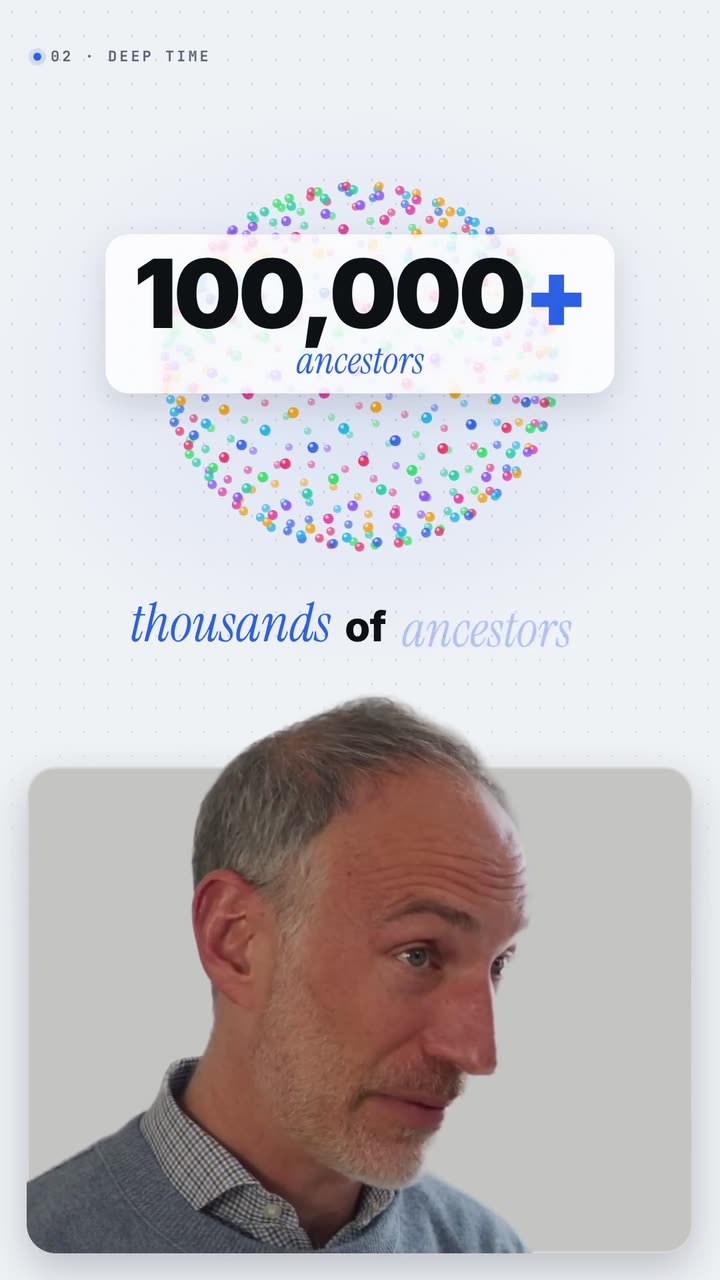
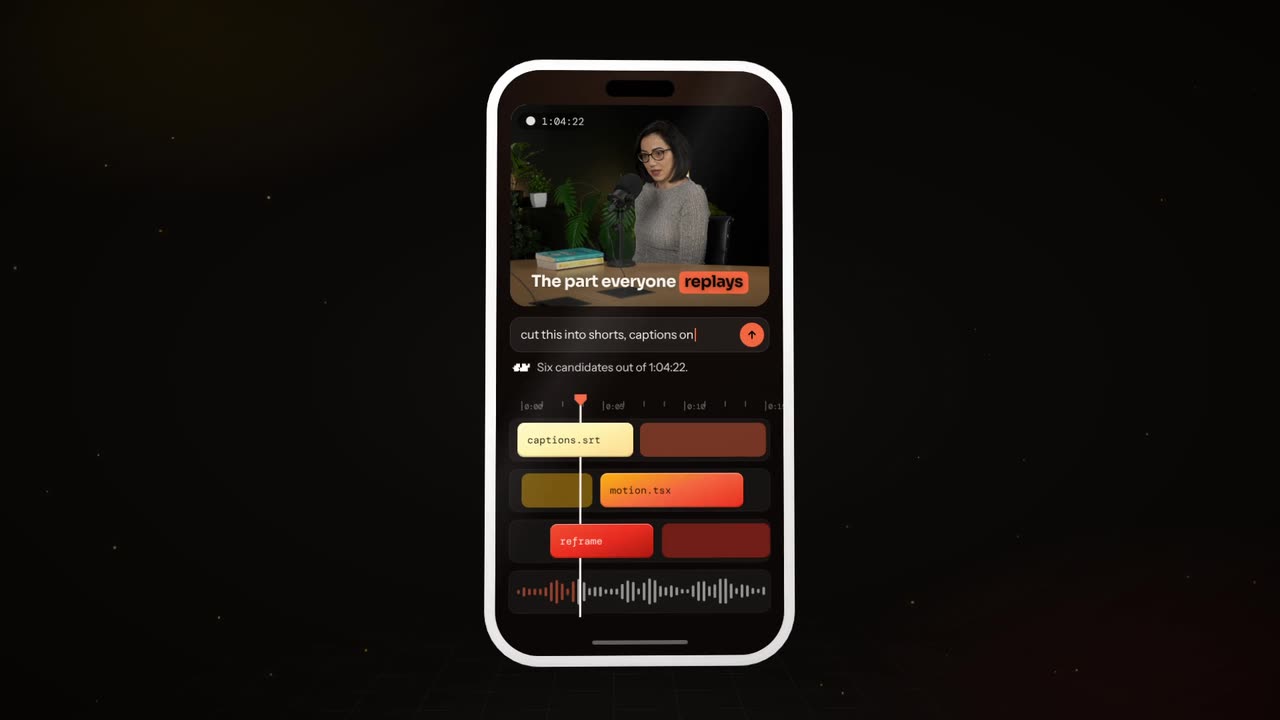
To make an animated end screen, create a 5 to 20 second outro that leaves clear space for YouTube's end screen elements, with your logo, one call to action line and a subscribe prompt animating in. Then add the clickable elements in YouTube Studio. The video must run at least 25 seconds.
Real outputs from the Videotto template gallery.
How to make an animated end screen in 6 steps
- Choose the length. YouTube end screens run 5 to 20 seconds and need a video of at least 25 seconds. Ten to twelve seconds is a good default: long enough to choose, short enough not to drag.
- Plan the layout. Decide where the video tiles and the subscribe element will sit. YouTube allows up to four elements. Leave those areas empty in your design.
- Pick the background. A brand colour, a slow loop, or a blurred and dimmed version of your final shot so the end feels connected to the video.
- Write one line. "Watch part two next" or "New tutorials every Tuesday". One message only, specific enough to give a reason.
- Animate the logo and subscribe prompt. Each animates in over about half a second, then holds still so the viewer's eye can move to the clickable tiles.
- Add the sound, then the elements. Your outro music or signature sound, fading out at the end. Upload the video, then place the clickable elements over the empty spaces in YouTube Studio.
End screen prompt for Otto
Adapted from real requests Videotto users sent to Otto. Change the layout line if you want the tiles on the other side.
Create a ten second animated end screen for my YouTube videos, 16:9.
Leave clean visual space for YouTube end screen elements: two video tiles on the right and a subscribe element on the left.
Background: a blurred, dimmed version of the last shot, with a soft [brand colour] tint.
My logo animates in at the top centre. Under it, the line: "[your call to action]".
A subscribe button style shape presses with a click, then holds still.
My outro music, fading out over the last two seconds.
Shorter end screen and outro prompts
- "Create a five second animated outro for my series and make a portrait version too."
- "Add a subscribe button click animation at the end."
- "End every short with: follow for part two."
- "Make the end screen match my intro style."
Worked example: a 12 second end screen layout
An illustration for a fictional cooking tutorial channel, 16:9 at 1920x1080. The video is 9 minutes, so the end screen starts at 8:48.
| Time | What happens | Space left for |
|---|---|---|
| 0 to 1 s | The final shot blurs and dims under a warm tint | Nothing yet |
| 1 to 2 s | Logo animates in at the top centre | Nothing yet |
| 2 to 4 s | Line appears: "Next: the 10 minute pasta sauce" | Two video tiles on the right |
| 3 to 4 s | A round subscribe shape presses with a click on the left | Subscribe element on top of it |
| 4 to 12 s | Everything holds still, music fades over the last 2 s | All elements visible |
The host also says one line over the first two seconds: "If this helped, the pasta sauce video is next." The spoken line and the text say the same thing, and the voice stops before the tiles appear, which leaves eight quiet seconds to choose.
What a good animated end screen gets right
An end screen has one job: the next click. Everything on it should point there.
| Element | Works | Does not work |
|---|---|---|
| Space | Clear areas sized for video tiles and the subscribe element | Graphics underneath the clickable areas |
| Logo | Small, top centre, still after it lands | A large logo that keeps moving |
| Call to action | One specific line naming the next video or the schedule | "Like, comment, subscribe, follow, visit" |
| Subscribe prompt | A button shape that clicks once, then holds | A looping, flashing button |
| Background | Brand colour or the dimmed final shot | Busy footage that competes with the tiles |
| Sound | Your outro music, fading out | A loud new track that feels like another video |
End screen tools compared
Typical effort to make a reusable animated end screen template, before adding the clickable elements in YouTube Studio.
| Tool | How it works | Typical time |
|---|---|---|
| YouTube Studio only | Elements over your last frame or a still image, no animation | About 5 minutes per video |
| Canva | Animated end screen templates sized for YouTube | Roughly 20 to 40 minutes |
| Premiere Pro or CapCut | Build the layout with shapes, text and keyframes | Roughly 30 to 60 minutes |
| After Effects | Fully custom animation and a reusable template | Roughly 2 to 3 hours |
| Otto | Describe the layout, line and music in one prompt | One prompt, then a few minutes of adjustments |
Whatever you use, make it once and reuse it. Viewers learn where to look on your end screen, and the same design every time is part of what makes a channel feel consistent. You can also save an end screen layout in YouTube Studio and import it into each new video.
Fixes for end screens that nobody clicks
| Problem | Fix |
|---|---|
| Graphics cover the clickable elements | Redesign with empty areas exactly where the tiles go |
| Too many requests | Pick one call to action and cut the rest |
| Viewers leave during a long sign off | Start the end screen while you are still giving the final line, not after a goodbye |
| A long outro on shorts | Shorts have no end screen elements. Use a one second line such as "follow for part two" over the last moment |
| Generic "subscribe for more" | Name the next video or the upload day so there is a reason to click |
FAQ
Why can I not add an end screen to my YouTube video?
You may not be able to add an end screen to a YouTube video because it is shorter than 25 seconds, it is a Short, or it is set as made for kids, where some interactive features are limited. Check the video length first. If it qualifies, the End screen option appears in YouTube Studio under the video's editor.
How many elements can a YouTube end screen have?
A YouTube end screen can have up to four elements, such as videos, playlists, a subscribe button, another channel, or a link for eligible channels. One video tile plus a subscribe button is often enough. Fewer choices make the next click easier, and they leave more room for your animated design.
What size is a YouTube end screen template?
A YouTube end screen template is normally made at the same size as the video, 1920 by 1080 pixels for 16:9 HD, or 3840 by 2160 for 4K. YouTube places its elements on a grid over that frame, so design with generous empty areas rather than exact boxes, then fine tune the element positions in YouTube Studio.
Do YouTube Shorts have end screens?
YouTube Shorts do not support end screens, so clickable video tiles and subscribe elements cannot be added the way they are on long videos. Instead, say or show a short call to action in the last moment of the Short, and use the related video link feature in YouTube Studio to point viewers to a longer video.
Do end screens increase subscribers?
End screens can increase subscribers when they give viewers a clear reason to continue, but results vary by channel and audience. A specific next video usually gets more clicks than a generic subscribe request. YouTube Studio shows end screen element clicks for each video, so compare a few designs over several uploads and keep what works.
Make your next video with Otto
Tell Otto what you want in plain words. It cuts, captions and animates the video for you.