To make an animated globe video, pick one style (glowing dots, flat vector, glass or satellite-like), say where the spin starts and where it stops, then list what appears in order: city pins, arcs between places, a highlighted country or one number. Keep it 6 to 10 seconds, spin slowly and hold the final frame for 1 to 2 seconds.
Real outputs from the Videotto template gallery.
The four animated globe styles and when to use each
A globe is a simple idea that is easy to overdo. The best ones have one camera move and one story: start wide, turn, land, reveal. Style is the first decision because it sets the mood before any marker appears.
| Style | Reads as | Good for | How to say it |
|---|---|---|---|
| Glowing dots | Tech, data, network | Reach, users, connections | "a globe made of small glowing cyan dots on black" |
| Flat vector | Friendly, educational | Explainers, kids content, geography | "flat pastel globe, simple land shapes, no texture" |
| Glass | Premium, launch moment | A single reveal in a keynote or promo | "a turning glass globe with soft blue light" |
| Satellite-like | Real world, news, travel | Locations, journeys, weather | "realistic satellite-style earth, soft clouds" |
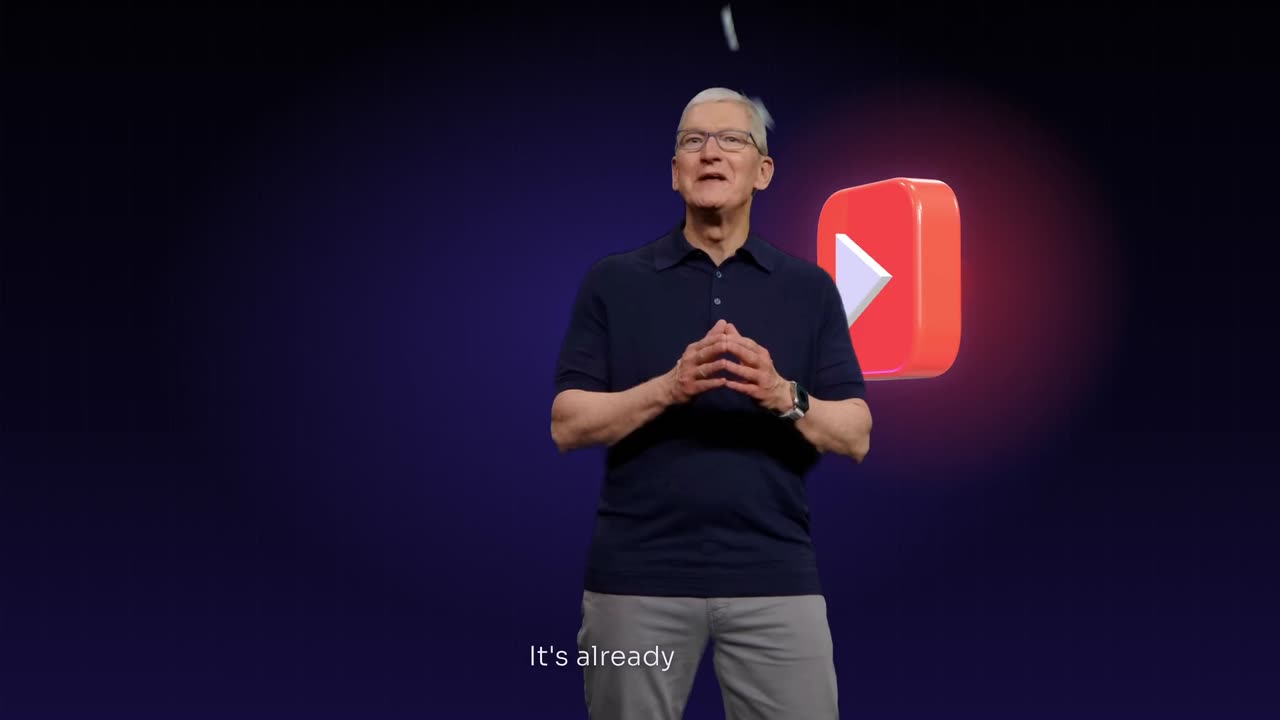
Whatever the style, the same few choices finish the look: a dark base with one glow colour and one highlight colour, pins or pulses that pop in one at a time, a soft whoosh on the spin and a quiet ping on each pin. The glass globe is the one to save for a big moment, like the glass globe in the keynote demo above.
Example: an 8 second globe for a shipping announcement
This is an illustrative example, not a real customer project. The input is one sentence: an online shop now ships from Singapore to Tokyo, Sydney and London. No footage, no map files. The brief asked for a dot globe in 9:16 at 1080x1920, with the title "Now shipping to 3 new cities".
Here is how the 8 seconds were split:
Beat sheet
| Time | What happens | Why it is there |
|---|---|---|
| 0 to 2 s | The globe forms from particles and spins slowly | Sets the scene before anything is read |
| 2 to 4 s | It eases to a stop on Southeast Asia and pushes in slightly | Lands on the starting point |
| 4 to 5.5 s | A pin pops on Singapore with a ripple | The origin, in the highlight colour |
| 5.5 to 7 s | Three arcs draw out to Tokyo, Sydney and London, one after another | One arc per new city, about half a second each |
| 7 to 8 s | Title fades in above the globe, everything holds | Time to read 6 words |
The first version had city names on every pin, which crowded the lower half of the phone screen. One follow-up line, "remove the city labels, keep only the title", fixed it, because the caption under the post already named the cities.
How to make an animated globe video in 6 steps
You do not need any footage. Otto generates the globe, the markers and the text as motion graphics from your description.
- Write the one line story. "Our team works across 12 countries", "the route from Lisbon to Tokyo", "where coffee is grown". Everything on the globe serves that line.
- Pick the style. Dots, flat, glass or satellite-like. Add your palette, ideally with hex codes, and one highlight colour.
- Set the camera path. Where the spin starts, where it stops, and whether it pushes in to a country or city. One stop is easier to follow than a tour of five.
- List the markers in order. Which places get pins, which pairs get arcs, which country lights up, and in what order they appear. Three to six markers is a comfortable number for a phone screen.
- Add text sparingly. A title, a few place names and one number at most. Say "no labels" if it is an overlay for a voiceover.
- Time it and hold. Six to ten seconds for most globes. Hold the final frame for 1 to 2 seconds so people can read it.
Animated globe prompt for Otto
Adapted from the way Videotto users brief Otto for map and globe graphics. Change the places and colours.
Create an 8 second animated globe. All motion graphics, no footage.
FORMAT: 9:16 vertical, globe in the lower half, title in the top third.
STYLE: a globe made of small glowing dots, black background, cyan #4FD8F0 land, one orange highlight #FF8A3D.
ANIMATION SEQUENCE:
0 to 2 s: the globe fades in from particles and spins slowly.
2 to 4 s: it eases to a stop on [region], gentle push in.
4 to 6 s: pins pop in on [city 1], [city 2], [city 3] with a soft ripple, one by one.
6 to 8 s: thin glowing arcs connect [city 1] to the others, the title [your title] fades in. Hold.
SOUND: a low whoosh on the spin, a soft ping on each pin.
RESTRICTIONS: place names spelled exactly as given, no extra labels, smooth easing, no bouncing.
Short globe prompts that also work
- "A spinning globe that stops on Indonesia and the country glows."
- "Glass globe reveal for the big line, turning slowly behind the speaker."
- "Dots light up across the world one by one, then the number counts up."
- "Globe overlay with a transparent background, no text, for my voiceover."
- "Fly from the globe down into the city, then cut to my footage."
Building a globe by hand vs describing it
Searchers comparing tools usually look at a few routes. After Effects can build any globe, often with a mapping plugin such as GEOlayers or a 3D layer setup, but every pin and arc is keyframed by hand. Google Earth Studio is free and makes realistic satellite flights, though it only does the satellite look and you add text later in an editor. Blender gives full 3D control with a steeper learning curve. Canva and CapCut offer stock globe animations you can drop in, but you cannot choose where they stop or what they pin.
| Route | Custom stop and pins | Typical time for an 8 s globe |
|---|---|---|
| After Effects with a plugin | Yes, fully | Roughly 2 to 4 hours for a first build |
| Google Earth Studio plus an editor | Yes, satellite look only | Roughly 1 to 2 hours including text |
| Blender | Yes, fully | Half a day or more without a template |
| Stock globe in Canva or CapCut | Minutes, but generic | |
| Otto from a prompt | Yes, described in words | A few minutes to brief, then a review and small fixes |
Times are typical estimates for someone who knows the tool, not measured results. A globe and a flat map also do different jobs: use the globe for reach and travel between continents, and a flat map once the story is inside one country, where labels are easier to read.
Animated globe mistakes that make it look cheap
- Spinning too fast. A fast spin is hard to follow and looks cheap. One slow rotation over about 2 seconds, then ease to a stop.
- Wrong places. Spell every city and country exactly, and check each pin sits in the right place before you post.
- Labels everywhere. Twenty names on a phone screen is noise. Label only the places your story needs.
- No final hold. If the globe keeps moving, nobody reads the title. Hold the last frame for a second or two.
- Borders you are unsure about. Disputed borders can upset viewers. When borders do not matter to the story, ask for a globe without them.
FAQ
How do you make a spinning globe animation for free?
To make a spinning globe animation for free, Google Earth Studio is the common choice for a realistic satellite look, and Blender is free for a fully custom 3D globe if you can learn it. Free stock globe clips in editors like Canva or CapCut are the fastest option, though you cannot choose where they stop or which cities they pin.
How do I add a globe animation over my own video?
Adding a globe animation over your own video works best with a transparent background export, so only the globe and its markers sit on top of your footage. Place it in a corner or the top third so it does not cover faces. Alternatively, use the globe full screen as a transition between two shots, which avoids any overlap problems.
What is the difference between an animated globe and an animated map?
The difference between an animated globe and an animated map is scale and purpose. A globe shows the whole world at once and suits reach, spread and travel between continents. A flat map shows one country or city in detail, with labels and routes that are easier to read. Many videos open on a globe and then cut to a map.
How do you zoom from a globe into a city in a video?
Zooming from a globe into a city in a video is usually done in two stages: the globe eases to a stop on the region, then the camera pushes in until the city fills the frame, often blending into a flat map or satellite view. Describe both stages and what appears at the end, such as a pin, a label or your own footage.
Make your next video with Otto
Tell Otto what you want in plain words. It cuts, captions and animates the video for you.