To add motion graphics to a short video, upload it or paste a YouTube link and describe the look in a few concrete words: a background, one accent colour, a type style and what should animate when. Ask for graphics that appear as each idea is spoken, never cover the face, and leave once the point lands.
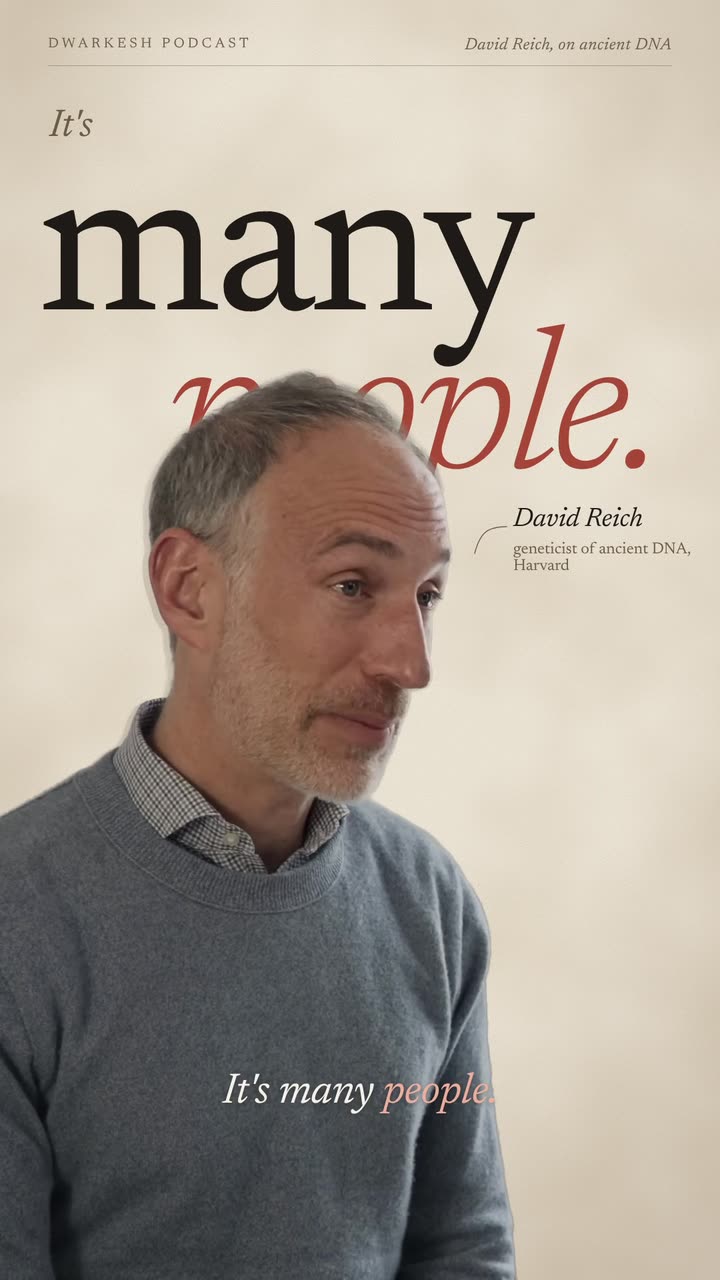
Real outputs from the Videotto template gallery.
What motion graphics are for
A short video has one job in its first seconds: give people a reason to stay. Motion graphics help in two ways. They make an idea easier to follow, because a number on screen sticks better than a number said out loud. And they give the eye something new every few seconds, so a video of one person talking does not feel static.
We studied 1M+ videos made by 280,000+ users on Videotto, and adding motion graphics to an existing video is one of the most common requests after clipping. People rarely ask for "motion graphics" alone. They describe a look: an old science book, a mission control screen, grid paper with one orange accent. The more concrete the description, the better the result.
Six kinds of motion graphics
Most edits mix two or three of these. Pick the ones your content needs instead of asking for everything.
| Kind | What it looks like | Best for |
|---|---|---|
| Kinetic text | Key words pop, slide or stamp in as they are said | Hooks, opinions, advice |
| Animated numbers | Counters, big figures, before and after | Finance, business, results |
| Charts and maps | Lines that draw, bars that grow, routes on a map | Explainers, news, history |
| Diagrams and drawings | Line art that builds as the idea is explained | Science, education, how it works |
| Lower thirds and labels | A name card, a topic tag, a chapter bar | Interviews, podcasts, series |
| Full screen scenes | A short animated card between shots of the speaker | Big moments, transitions |
Describe a style in one paragraph
An AI editor follows a style description the way a designer follows a brief. These five parts cover almost everything, and each takes a few words.
- Background. "Warm off-white grid paper", "black with a faint green circuit grid", "aged cream paper".
- One accent colour. "One burnt orange accent", "key words in deep red". One accent reads as a style. Five reads as noise.
- Type. "Italic serif captions", "wide spaced all caps headlines", "bold rounded sans".
- What animates. "Diagrams draw in as he explains", "numbers count up", "a progress bar along the top".
- What stays untouched. "Never cover the face", "keep the bottom 20% clear", "do not crop or retime the footage".
Do not skip the last part. Saying what the graphics must not do is as useful as saying what they should do.
Graphics over a talking head
This is the most common case: one person talking to camera, and graphics that support what they say. Two layouts work well. In the first, the speaker fills the frame and graphics appear in the top third, away from the face. In the second, the screen splits: the speaker in the lower half, an animated explainer above. For key data, cut to a short full screen graphic and come back to the speaker.
Layouts, timing and the restraint that keeps it watchable.
Copying a style you like
Sometimes the fastest brief is a reference. Upload a video whose look you like, or paste its YouTube link, and ask for its graphics, pacing, captions and framing applied to your footage. Your own words, face and voice stay; only the editing style carries over. Use references for inspiration, and do not copy another brand's logos or characters.
What a style is made of and how to ask for it.
Numbers, charts and maps
Data is where motion graphics earn their keep. Paste the numbers straight into the prompt, as a small table or a list, and say what the chart should show: a line that falls, a donut that splits, bars that race. Give it a title, say how long it should last, and say whether it sits over footage or on its own background.
Check every figure on screen against your source before you export. A chart is only as good as the numbers you gave it.
Audio and music into video
You do not need footage to make a video with motion graphics. A podcast episode, a voice note or a narration can drive the whole thing: the words become animated text and each sentence gets its own scene, timed to the voice. Musicians use the same idea for lyric videos, with each line appearing just before it is sung and holding a moment after.
For both, the audio is the timeline. Ask for "the original voice kept exactly as it is, with every scene synced to it", and say what kind of visual each part should get.
Sound makes graphics land
A graphic that appears in silence feels unfinished. A soft whoosh on a slide, a pop on a keyword or a tick on a counter makes it feel deliberate. Keep them quiet and sparse.
Where effects help, and where they get in the way.
Prompts that work
Adapted from real requests Videotto users sent to Otto. Change the colours and the subject to yours.
[upload your video or paste a YouTube link]
Add motion graphics to my whole video, vertical 9:16.
Style: warm off-white grid paper with one burnt orange accent, bold sans headlines.
Keep me visible at all times and never cover my face. Use the top third for graphic cards.
Animate key words as I say them, count up any numbers, and draw simple diagrams for the main ideas.
For the biggest point, cut to a short full screen graphic, then back to me.
Do not crop, retime or restyle my footage.
Add small clean captions and subtle whooshes on the transitions.
Shorter versions people use
- "Add motion graphics to this video to make it more dynamic."
- "Use visual metaphors and add motion graphics to visualise the concept."
- "Turn my data into animated scenes. It is for YouTube, no music."
- "Match the color of this website for the text and motion explainers."
- "Just add motion graphics where they make sense, please."
Mistakes to avoid
- Graphics on every second. If something moves all the time, nothing stands out. Let graphics arrive with an idea and leave once it lands.
- Covering the face. People watch faces first. Keep graphics in the top third or beside the speaker.
- Too many colours. Pick one accent and use it only for the thing that matters most.
- Text under the app buttons. The bottom of a vertical video is covered by the platform. Keep graphics and captions above it.
- Unchecked numbers. Read every figure on screen against your source before you post.
FAQ
Do I need After Effects to add motion graphics?
No. You describe the graphics in words and Otto builds them on your video. You can still adjust the timing, wording and colours afterwards.
Can motion graphics be added to an existing video?
Yes. That is the most common case. Upload the video or paste a YouTube link and say what to add, and ask for the original footage to stay unchanged.
Can I make a video with only motion graphics and no footage?
Yes. A script, a voice recording or a set of numbers is enough to build a full motion graphics video, with an AI voice if you have no recording.
How do I get the same style every time?
Save your style paragraph and paste it with every video, or keep one finished video as the reference and ask Otto to match it.
Will the graphics be in my language?
Yes. Videotto has users in 190 countries, and on screen text can be in the language of the video or any language you ask for.
Describe a style and watch it build
Paste the prompt above into Otto with your video and change the colours.