To add auto subtitles to a short video, upload it or paste a link into an editor with automatic captions and ask for subtitles synced to the speech. Use 3 to 5 words per line, one highlighted key word, and a position in the middle third of the 9:16 frame. Check names and brand words, then export.
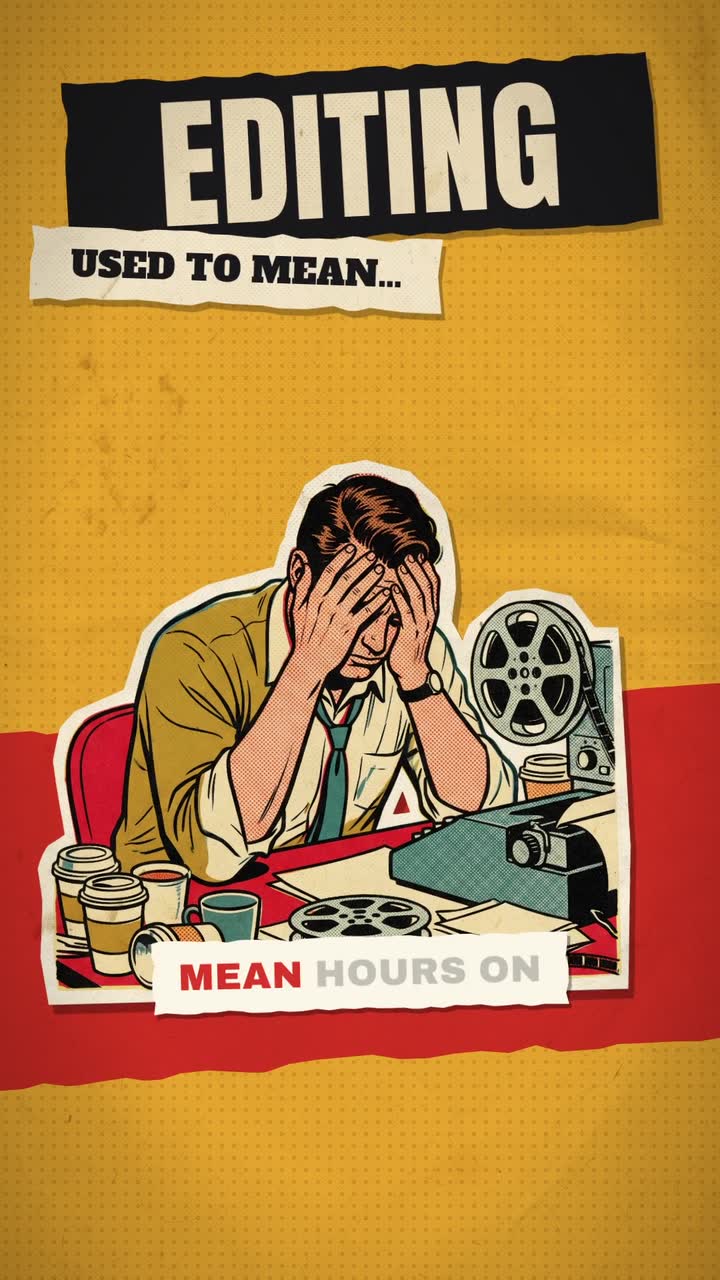
Real outputs from the Videotto template gallery.
Auto subtitle options compared
Most people choose between the captions built into the apps and an editor that burns styled subtitles into the video. Each has a place.
| Option | What you get | Trade-off |
|---|---|---|
| Built-in app captions (TikTok, Instagram, YouTube) | Automatic captions viewers can switch on or off | Plain style you cannot design, and many viewers never turn them on |
| CapCut | Styled auto captions with templates, burned in | One video at a time, fixes are manual |
| Premiere Pro | Speech to text, a caption track and file export | Precise, but styling social captions takes time |
| Descript | Captions from a transcript you edit like a document | Built around transcript editing more than social styling |
| Otto in Videotto | Captions synced to speech in the style you describe, plus translation | You proofread names before export, like any auto tool |
Built-in captions are a good free baseline. Burned-in subtitles are what most short form creators use, because they look the same for every viewer and can carry a highlight colour or a hook.
Burned-in subtitles vs SRT files
Burned-in (or open) subtitles are part of the picture. Everyone sees them, on every app, and you control the font, colour and position. They cannot be turned off, edited after export or read as text by a platform.
SRT files are closed captions: a plain text file of lines and timestamps uploaded next to the video. YouTube accepts them, and viewers can switch them on or off or auto translate them. On TikTok and Reels, burned-in subtitles are the norm because the in-app caption options are limited. If you need an SRT for YouTube, most desktop editors, including Premiere Pro and Descript, can export one, and some creators use both: burned-in for the look, a file for accessibility.
Add auto subtitles in 5 steps
- Bring the video in. Upload the file or paste a YouTube link.
- Describe the style. Font feel, colour, words per line, and which word to highlight. Or point to a video whose caption style you want to copy.
- Set the position. Middle third for most videos, or the bottom when there is nothing else there. Keep clear of the app's buttons.
- Pick the language. The language of the video, a translation, or both stacked.
- Check the words, then export. Read through names, brands and numbers, fix anything wrong, and export.
Subtitle styles for short videos
Every style below came up in real requests. Match it to how fast you talk and what the video is for.
| Style | Best for | How people ask for it |
|---|---|---|
| Word by word highlight | Fast talkers, hooks, clips | "key word highlighted in yellow" |
| Phrase at a time | Interviews, podcasts, advice | "3 to 5 words at a time" |
| Single text bar | One line comments over a clip | "a Snapchat style caption" |
| Bilingual | Two language audiences | "English on top, Chinese underneath" |
| Elegant serif | Calm explainers, education | "italic serif captions" |
Subtitle size, position and timing on a phone
Good subtitles disappear: people read them without noticing they are reading. These are rough guides that hold up on most 1080 x 1920 videos.
- 3 to 5 words per line, one or two lines at most. Short lines are read in one glance.
- Big and high contrast. Text that fills around half to two thirds of the frame width, white with a dark outline or box, works on any footage.
- One accent word. Highlight the key word of each line, not every word.
- Out of the way. The apps cover roughly the bottom fifth of a vertical frame with the caption and buttons, and the top tenth with the header. Keep subtitles in the middle third and off the speaker's face.
- Readable speed. Each line should stay up for at least about a second. Subtitle guidelines for TV commonly cap reading speed at somewhere around 15 to 20 characters a second, which short lines meet easily.
Translated and bilingual subtitles
Plenty of videos are made for two audiences at once. You can ask for subtitles in the language of the video, translate them into another language, or stack both so one upload works for both groups. Stacked lines need more room, so drop to 3 or 4 words per line.
Before you export, check names and brand words. Speech recognition hears sounds, not spelling, so tell it how to spell your name, your product and any guest names. Writing them straight into the prompt saves a round of fixes.
Example: subtitling a 45 second clip
An illustrative example, not a real customer. A 45 second talking head tip, spoken at around 150 words a minute, holds roughly 110 words. At 4 words per caption that is close to 28 caption cards.
- By hand. Typing the transcript, splitting it into 28 cards and lining each one up to the voice in Premiere Pro or CapCut typically takes 30 to 45 minutes, plus styling.
- With Otto. Upload the clip and paste the prompt below with the brand name spelled out. The captions come back synced and styled. The hands-on part is a 2 to 3 minute read through, where you might fix one misheard word.
- Result. White captions, 4 words at a time, the key word of each line in yellow, sitting in the middle third above the app buttons.
Auto subtitle prompts to paste into Otto
Adapted from real requests Videotto users sent to Otto. Change the colours and spellings to yours.
[upload your video or paste a YouTube link]
Add big engaging captions synced to my speech, 3 to 5 words at a time.
White text with the key word of each line highlighted in yellow.
Keep them in the middle third, clear of the app buttons and my face.
Use a fade up animation for each line.
Spell these exactly: [your name], [brand name].
Shorter subtitle prompts people use
- "Remove silences, add captions at the bottom."
- "Put English subtitles on every clip I chose."
- "Make the captions in Indonesian and use a fade up animation."
- "Copy the caption style from this video onto mine."
Auto subtitle mistakes to avoid
- Tiny subtitles. If you have to squint on a phone at arm's length, they are too small.
- Subtitles under the app buttons. The bottom of a vertical video is covered by the platform. Move them up.
- Highlighting every word. When everything is coloured, nothing stands out.
- Skipping the read through. One misspelled name in a subtitle is the thing people comment on.
FAQ
Are TikTok's built-in auto captions enough?
TikTok's built-in auto captions are enough for basic accessibility, and they cost nothing. They are not enough if you want the words to do work in the video: you cannot style them, highlight a key word or use them as a hook, and viewers can turn them off. Most creators who rely on text use burned-in subtitles instead.
How accurate are AI auto subtitles?
AI auto subtitles are usually accurate on clear speech in a common language, and the mistakes cluster in predictable places: names, brand words, jargon, numbers and overlapping speakers. Background music and strong echo also lower accuracy. Spelling tricky words out in your request and reading the subtitles once before export catches nearly all of it.
Do subtitles help short videos show up in search?
Subtitles can help short videos show up in search, mainly on YouTube, which can read caption files and the spoken words. On TikTok and Instagram, search leans more on your description, on-screen text and audio. Subtitles are not a ranking trick, though: their bigger effect is keeping sound off viewers watching longer.
How do you subtitle a video in a language you don't speak?
To subtitle a video in a language you don't speak, generate subtitles in the original language, then translate them into yours, or the other way round. Ask a native speaker to read the translated version before you publish if you can, because idioms, names and slang are where machine translation slips. Stacked bilingual subtitles let both audiences check the meaning.
Can viewers turn off burned-in subtitles?
No, viewers cannot turn off burned-in subtitles, because the words are part of the video image itself. That is why they look identical on every app and device. If you want subtitles people can switch off, upload a separate SRT caption file, which YouTube supports, alongside a version of the video without burned-in text.
Make your next video with Otto
Tell Otto what you want in plain words. It cuts, captions and animates the video for you.