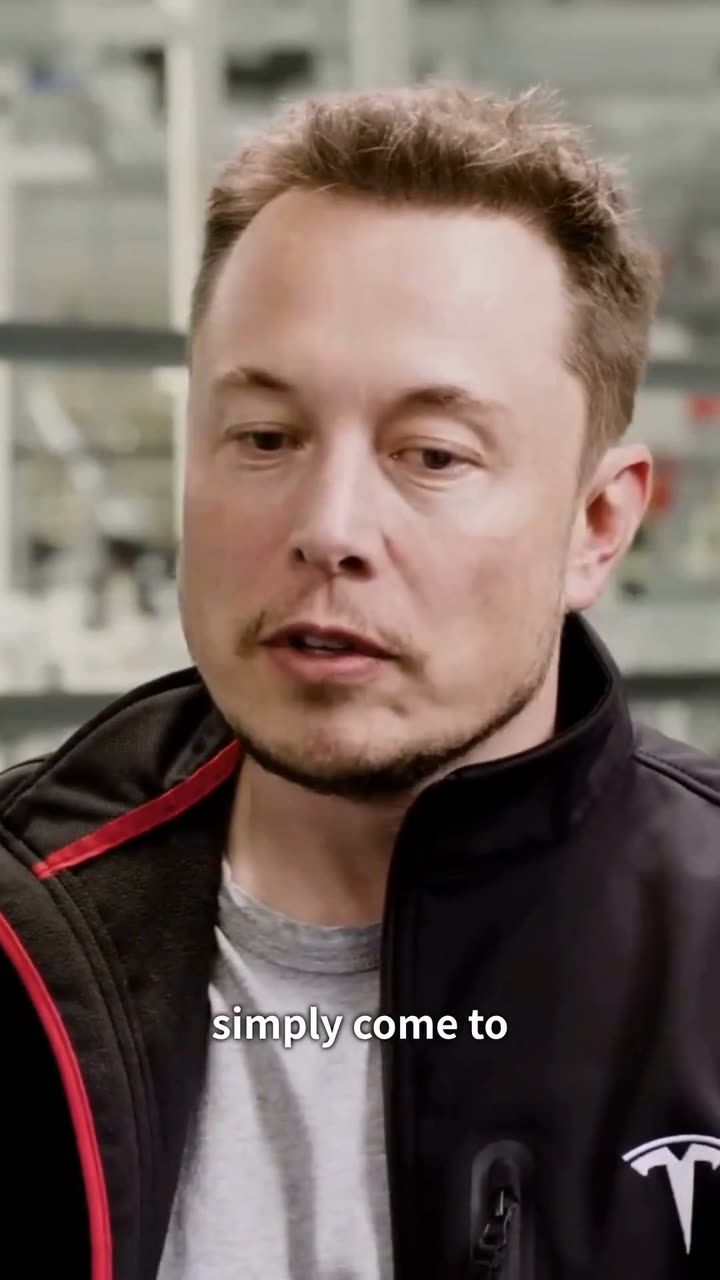
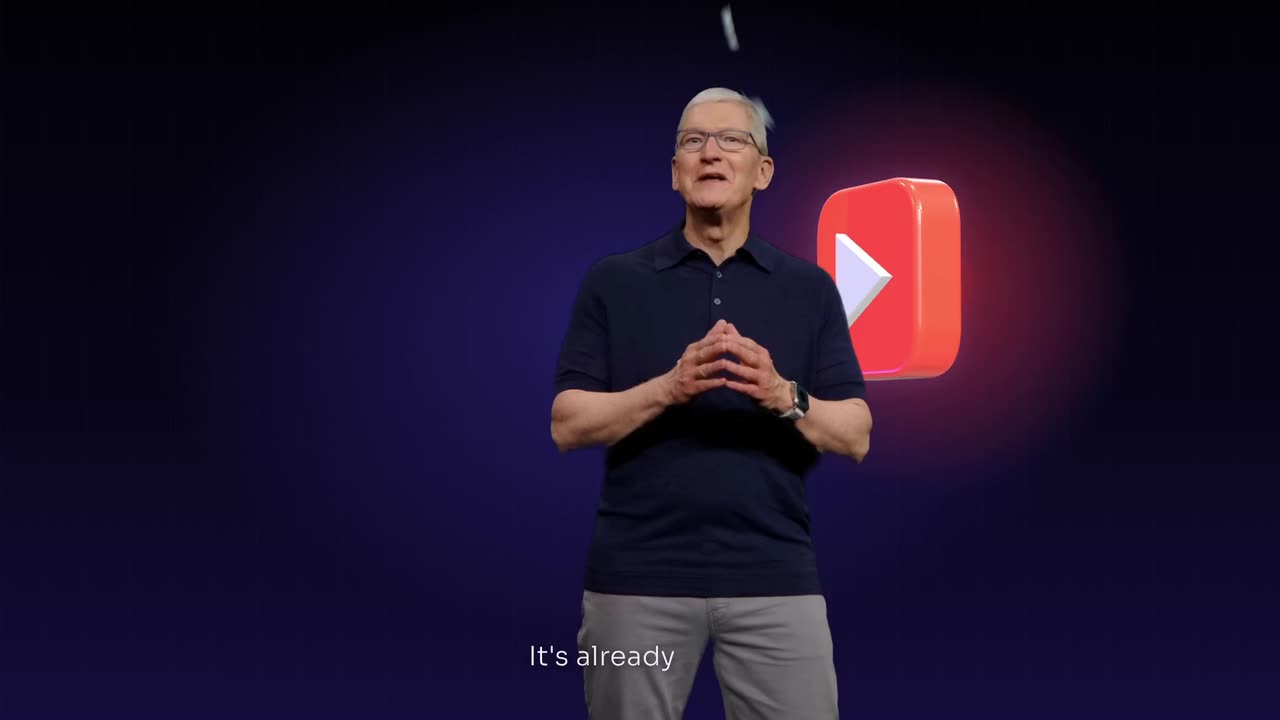
To reframe a video to 9:16 with the speaker in shot, use a crop that tracks whoever is talking instead of a fixed center crop. With two people, switch to the active speaker or stack both faces top and bottom. Export at 1080 x 1920, never stretch the footage, and check every change of speaker before posting.

Real outputs from the Videotto template gallery.
Why a center crop fails when you reframe to 9:16
A 9:16 crop taken from a 16:9 frame keeps only about a third of its width. From a 1920 x 1080 shot that is a window roughly 608 pixels wide. Anything outside it is gone, and the most common problems all come from that.
- The speaker sits off center. Podcast and interview guests usually sit left or right of the middle. A fixed center crop shows the gap between them.
- People move. A lean back, a gesture or a stand up pushes a face out of a window that does not follow.
- Two people take turns. A static crop can only hold one of them. Every reply from the other person happens off screen.
- The image gets soft. Blowing that 608 pixel window up to 1080 pixels wide is about a 1.8x zoom, so 1080p sources lose detail.
- The subject is not a face. Slides, screens, products and scoreboards get cut in half unless something tells the crop to keep them.
How to reframe a video to 9:16 in 4 steps
Pick one of four layouts first, then let the crop do the work.
- Start from the best source. Upload the original file if you have it. A 4K source gives a 9:16 window about 1215 pixels wide, so the crop needs no upscaling at all. A YouTube link works too.
- Choose the shape and the layout. 9:16 for TikTok, Reels and Shorts, 4:5 or 1:1 for feeds, 16:9 for YouTube. Then tracking, stacked, locked or fill.
- Name what must stay in frame. The speaker's face, both people, the product, the screen. Add "never stretch the footage".
- Check every change of speaker. Scrub through and watch each switch. If a face clips the edge or the crop jumps, ask for that moment to be fixed.
Four reframing layouts and when to use them
| Layout | What it does | Use it for |
|---|---|---|
| Track the speaker | The crop follows whoever is talking | Podcasts, interviews, back and forth |
| Stack two people | Two faces top and bottom in one frame | Reactions, debates, two hosts |
| Lock on one person | The crop stays on a single face | Monologues, one guest answering |
| Fit with a fill | The whole wide frame over a blurred copy or a colour | Slides, screens, wide action |
Prompt to reframe a video to 9:16 with the speaker in shot
Adapted from real requests Videotto users sent to Otto.
[your YouTube link or uploaded video]
Reframe this to vertical 9:16 for smartphones.
Track whoever is speaking and keep their face visible at all times.
When both people react, stack them top and bottom so both stay in shot.
Use dynamic cropping, never stretch the footage, and keep the crop steady between speakers.
Do not zoom in too close to the face.
Add big captions in the middle third.
Short reframe requests that work
- "Optimise all framing for smartphones. Reframe intelligently and keep the speaker's face visible."
- "Keep both people in the shot."
- "Make every clip fill the full vertical frame edge to edge."
- "Format to 16:9."
- "Do not crop the square video into a tight vertical crop."
Example: reframing a two person podcast to 9:16
Example (illustrative). A 45 second clip from a 1080p interview. The host sits on the left third of the frame, the guest on the right third, with a table between them.
What happens second by second
| Time | On screen in 16:9 | Reframed 9:16 result |
|---|---|---|
| 0 to 12 s | The guest answers | Crop locked on the guest, face in the upper third |
| 12 to 15 s | The host laughs and cuts in | Stacked: host on top, guest below |
| 15 to 38 s | The guest tells the story | Back to the guest, one smooth move, no jitter |
| 38 to 45 s | Both react to the punchline | Stacked again so both reactions show |
Doing the same by hand means keyframing the crop position at every switch. In Premiere Pro, Auto Reframe gives a starting point and DaVinci Resolve Studio has Smart Reframe, but two person clips still usually need manual fixes: roughly 15 to 30 minutes per minute of footage. Asking Otto in one prompt moves that time to a review pass of a few minutes per clip.
Aspect ratio and resolution specs for reframed video
Reframing is easier to plan once you know how much of the original each shape keeps.
Common target shapes from a 16:9 source
| Target | Export size | Where it goes | Width of a 1080p frame kept |
|---|---|---|---|
| 9:16 | 1080 x 1920 | TikTok, Reels, Shorts, Stories | About 32% |
| 4:5 | 1080 x 1350 | Instagram and Facebook feed | About 45% |
| 1:1 | 1080 x 1080 | Feeds, LinkedIn | About 56% |
| 16:9 | 1920 x 1080 | YouTube, websites, slides | 100% |
The tighter the shape, the more the crop has to move to keep people in it. That is why 9:16 needs tracking far more often than 1:1 does.
Reframing 9:16 back to 16:9
Sometimes the vertical video needs to go wide, for YouTube or a presentation. There is no hidden picture at the sides to reveal, so there are three honest choices: place the vertical video in the middle over a blurred copy of itself, put it on a designed background with your title and logo beside it, or put two vertical clips side by side.
If the source is already wide and you just want horizontal clips, no reframe is needed. Ask for the clips to stay 16:9 and keep the original framing.
FAQ
What is the difference between cropping and reframing a video?
The difference between cropping and reframing a video is movement. Cropping cuts the same fixed window out of every frame. Reframing moves that window over time, so whoever matters stays in view as people shift, gesture and take turns. For vertical clips cut from wide footage, a fixed crop works only when one person sits dead center and barely moves.
How do I keep two people in a vertical video?
To keep two people in a vertical video, either stack them, with one face in the top half and the other in the bottom, or switch the crop to whoever is speaking. Stacking suits reactions and debates where both faces matter at once. Switching suits interviews where one person talks for longer stretches and the other mostly listens.
Why does my video look blurry after converting to 9:16?
A video looks blurry after converting to 9:16 because the vertical crop is enlarged. From a 1080p wide source, the crop is about 608 pixels wide and gets stretched to 1080, roughly a 1.8x zoom. Recording in 4K, or uploading the original file instead of a compressed download, keeps the reframed clip noticeably sharper.
What resolution should a 9:16 video be?
A 9:16 video should be 1080 x 1920 pixels for TikTok, Instagram Reels and YouTube Shorts. That is the size all three display at on most phones. Exporting larger rarely shows a visible difference after the apps compress it, while exporting smaller, such as 720 x 1280, can look soft on newer phones.
Should I film vertically or reframe later?
Whether to film vertically or reframe later depends on where the video is going. If it is only for shorts, filming 9:16 gives the sharpest result. If you also need a wide YouTube version, film 16:9, ideally in 4K, and leave space around people so a vertical crop can follow them without cutting off heads or hands.
Go vertical without losing anyone
Paste the prompt above into Otto with your link or file.