To auto edit a talking head video, upload the raw recording and describe the result: cut silences, filler and repeated takes, keep your exact words, add big engaging captions, cover the jump cuts with matching B-roll, clean the audio, then add light music and sound effects. Check names and the first 3 seconds, then export.
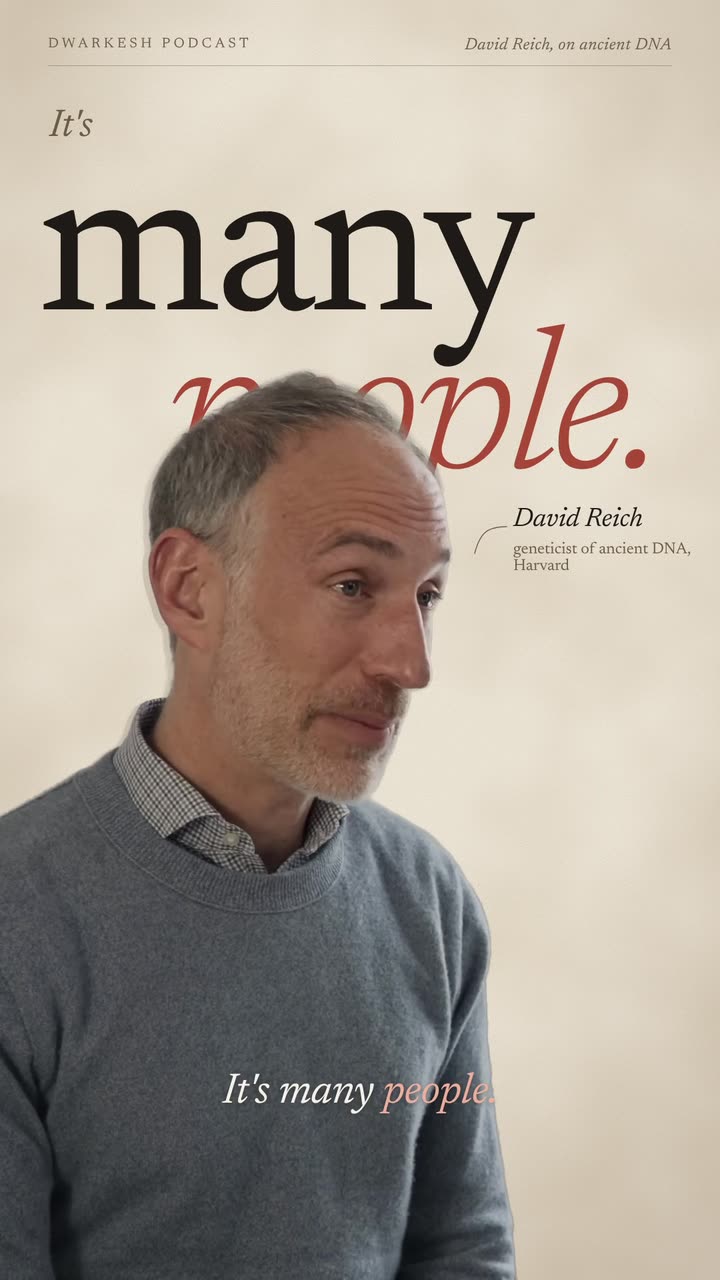
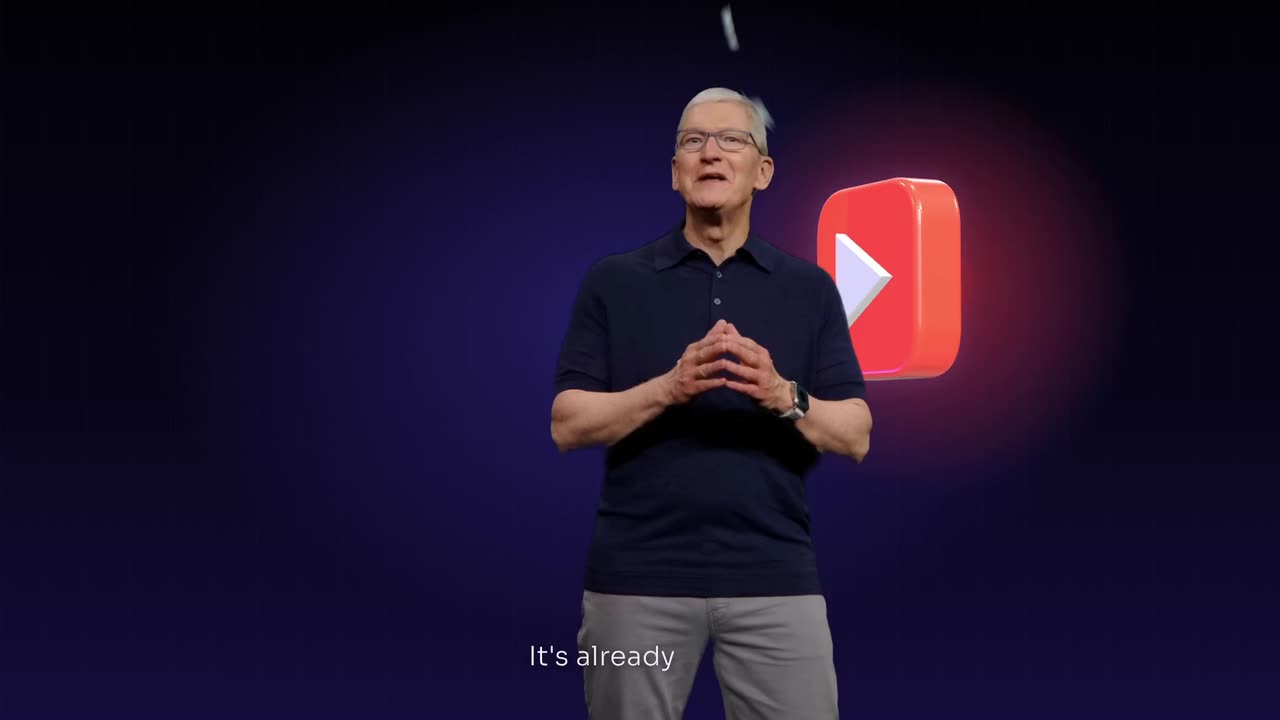
Real outputs from the Videotto template gallery.
What auto editing does
A talking head video is the simplest thing to film and one of the slowest to edit. You say a line, stumble, say it again, look away, carry on. Then someone has to find every gap, pick the best take, write the captions, find footage to cover the cuts and balance the sound. Auto editing moves all of that from the timeline into a sentence.
We studied 1M+ videos made by 280,000+ users on Videotto. After clipping long videos into shorts, editing a person talking to camera is one of the most common jobs, and the requests read like a checklist: remove the pauses, add captions, add B-roll, add music, make it engaging. The table below maps each item to what it fixes.
| Edit | What it fixes | How people ask for it |
|---|---|---|
| Cut pauses and retakes | Dead air, flubs, second takes | "cut out all the pauses and the rough takes" |
| Captions | Viewers watching on mute | "animated captions with highlighted keywords" |
| B-roll | A static face for a whole minute | "add b-roll for the things I talk about" |
| Sound | Hiss, echo, silence under the voice | "remove background noise and add music that fits" |
| Sound effects | Flat moments, cuts that feel abrupt | "subtle whooshes on my zooms" |
| Voiceover and translation | A second audience or no voice at all | "translate to English subtitles" |
The order that works
The order matters, because each step depends on the one before. Captions timed before the cuts are made fall out of sync, and B-roll chosen before the script is final covers the wrong words.
- Cut first. Remove silences, filler words, false starts and repeated takes, so the timeline holds only what you mean to say.
- Then captions. Time them to the final cut, in the style and language you want.
- Then visuals. B-roll, images, zooms and motion graphics over the moments that need them.
- Then sound. Clean the voice, add a quiet music bed and a few sound effects.
- Then the extras. A voiceover, translated captions, your logo and an end card.
- Review and export. Watch the first 3 seconds twice, read every name, then export.
You can ask for all of it in one prompt and Otto works through it in this order. Splitting it into a few follow up messages is fine too, and often easier to review.
Step 1: cut the pauses and retakes
This is the step that saves the most time. Upload the full raw recording, including the takes you know are bad, and ask for silences, filler words, restarts and repeated lines to be cut, keeping the best take of each line. Then protect what matters: your exact words, your voice and your natural pace.
If you want a target length, say it, for example "under 60 seconds without making my delivery feel rushed". The editor will trim the weakest parts as well as the gaps.
What to cut, what to keep, and how to make jump cuts look smooth.
Step 2: captions
Short videos autoplay muted, so the words on screen are the first thing people take in. Ask for big engaging captions synced to your speech, 3 to 5 words at a time, with one key word highlighted, placed in the middle third of the frame away from the app buttons. Give the spelling of your name, your brand and any guests.
Styles compared, placement, and bilingual subtitles.
Step 3: B-roll and visuals
A face on screen for a full minute loses people. B-roll is the footage that plays over your voice: the coffee you mention, the gym, the laptop, the city. It also hides the small jumps left by cutting pauses. Ask for footage that matches what you say at each moment, and say whether you have your own clips to use first.
For explainers, motion graphics do the same job with more precision: a keyword that pops as you say it, a number that counts up, a simple diagram. Keep them away from your face and let them leave once the point is made.
For graphics, see how to add motion graphics to a talking head video.
Stock, your own clips or generated images, and how to keep them relevant.
Step 4: sound
Viewers forgive soft footage long before they forgive bad audio. Ask for background noise, hiss and room echo to be cleaned up while keeping your voice natural. Then add a music bed quiet enough that every word stays clear, and sound effects only where they mean something: a whoosh on a zoom, a pop on a keyword, a hit on the punchline.
Noise is far easier to prevent than to remove. Record close to the microphone, in a small room with soft things in it, and turn off fans and air conditioning before you press record.
What can be fixed after recording, and what has to be fixed before.
Sound effects and meme edits
For energy and comedy, a few well placed effects, zooms and reaction images do more than any amount of music.
Where effects add energy, and where they get in the way.
Step 5: colour and quality
Most "make it HD" requests are really about three things: starting from the best source file, not cropping in so far that the picture falls apart, and a picture that is bright enough. Upload the original recording rather than a downloaded copy, ask for a gentle reframe, and describe the look you want in plain words, such as "a little brighter and warmer".
An honest look at what an editor can and cannot recover.
Step 6: voiceover and translation
Two extras open a video to new viewers. An AI voiceover can narrate a script over footage when you would rather not record your own voice, or add a short intro line. Translated captions let the same video work in another language, either replacing the original captions or stacked under them.
For other languages, see how to translate a video and add subtitles in another language.
Writing for the ear, picking a voice and timing it to the visuals.
The full prompt
Adapted from real requests Videotto users sent to Otto. Paste it with your upload and delete the lines you do not need.
[upload your raw talking head recording]
Edit this into an engaging vertical 9:16 video for TikTok and Reels.
Cut all long pauses, silences, filler words and repeated takes. Keep the best take of each line.
Keep my exact words, my voice and my natural delivery. Do not rewrite or speed anything up.
Aim for under 60 seconds without making it feel rushed.
Add big engaging captions, 3 to 5 words at a time, key word highlighted.
Add B-roll that matches what I am saying, and subtle zooms to hide the cuts.
Clean up background noise, add quiet background music and a few subtle sound effects.
Open on my strongest line as a hook in the first 3 seconds.
Shorter versions people use
- "Please cut out all the pauses, connect the videos, add the B-roll shots in the right places and add captions."
- "Add motion graphics to my explainer, cut out the rough takes and add background music."
- "Can you fully edit this video with zooms, sound effects and music?"
- "Remove the background noise and keep the audio good quality."
- "Cut the video and make it more interesting with a really good hook. No music or subtitles, just cut it better."
What to keep in your own hands
Auto editing does the work, but a few decisions are still yours. These take a minute and make the difference between a video that is finished and one that is right.
- The first 3 seconds. Watch the opening twice. If it does not make you want the next line, ask for a different hook.
- Names and numbers. Read every caption that contains a name, a brand or a figure.
- Claims. If you are making a statement of fact, make sure nothing was cut that changes its meaning.
- Rights to footage. Use your own clips, stock footage or generated images, not footage you have no permission to use.
Mistakes to avoid
- Captions before cuts. Cut the recording first, or the captions will drift out of sync.
- Cutting every breath. A person needs a beat before a punchline. Ask for natural pacing, not zero gaps.
- Generic B-roll. Stock that does not match the words feels like filler. Ask for footage tied to what you say.
- Music louder than the voice. If you have to strain to hear a word, the music is too loud.
- Effects on every cut. When every cut has a whoosh, none of them land. Save sound effects for the moments that matter.
FAQ
What is auto editing?
Auto editing is editing by description. You upload a raw recording or paste a YouTube link, say what the finished video should look like, and an AI editor makes the cuts, captions, visuals and sound changes on a timeline you can still adjust.
Will auto editing change what I said?
Not if you tell it not to. Say "keep my exact words and do not rewrite my lines" in the prompt. The editor only removes pauses, filler and repeated takes.
Can I still edit by hand afterwards?
Yes. Every change lands on the timeline as items you can move, trim or delete, and you can ask Otto for a change in plain words at any point.
Do I need to film in vertical?
No. Film in whatever you have. Otto can reframe a horizontal recording to 9:16 and keep you in frame.
Does it work in languages other than English?
Yes. Videotto has users in 190 countries, and you can edit videos spoken in other languages, caption them in that language, or translate the captions.
Upload one raw take and get a finished short
Paste the full prompt above into Otto with your recording.